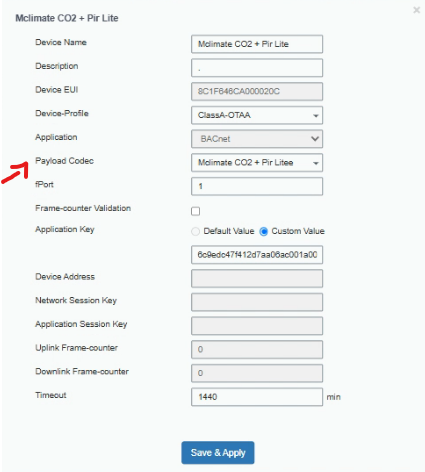
For the purpose of this article, we will be using a Milesight UG65 and a MCLIMATE CO2 + PIR Lite sensor.
1. Access the Gateway Web UI
First, connect to your gateway’s web UI as normal by navigating to the gateway’s IP address.
2. Open the Payload Codec Section
Once logged in, go to the Payload Codec section in the UI.
Next, add a Custom Payload Codec. This is required to translate incoming payloads into human-readable data.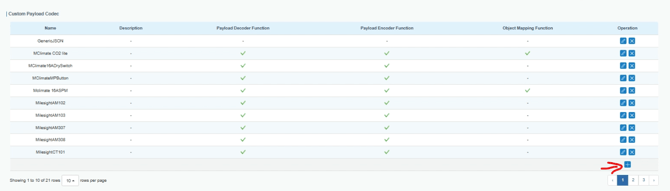
4. Complete the Codec Functions
Within your Custom Payload Codec, there are three fields that may require input for full functionality:
- Payload Decoder Function
This is the part of the codec that translates incoming data.
- Payload Encoder Function
This allows you to write data to your third-party device.
- Object Mapping Function
If you want to expose your objects as Modbus/BACnet points, you will also need to complete the Object Mapping Function. This maps packets that have already been translated through your Payload Decoder.
Here is an example of the object mapping structure.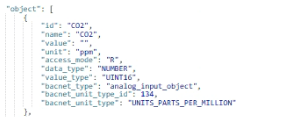
5.
Add the Device
Once the codec has been created, you can add the device as you normally would.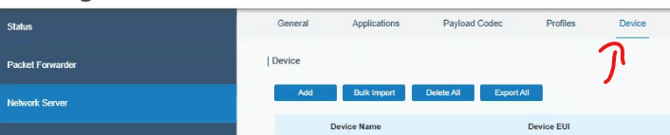
When adding the device, make sure you assign your newly created codec to it.