
An authentication scheme verifies that a user is authorized to access a station. All authentication requests
are routed through the system’s AuthenticationService.
These default authentication schemes are provided as standard components of the
AuthenticationService:
• DigestScheme:With this scheme, a user password is never directly sent to the station. Instead, proof is
sent that the user knows the password. This scheme connects Niagara 4 supervisor to Niagara 4 station.
• AXDigestScheme:Withthis scheme, several messages are passed back and forth to prove that the cli
ent knows the password. The client’s password is never actually transmitted, which helps protect the sys
tem if another layer of security, such as secure TLS communication fails.
This scheme provides compatibility with stations running previous software versions. Stations running
NiagaraAX must have been upgraded with the following security updates: 3.8, 3.7u1, 3.6u4, or 3.5u4.
This scheme allows Niagara 4 supervisor to connect to NiagaraAX station.
NOTE:Boththe DigestSchemeand AXDigestSchemeuse SCRAM-SHA(Salted Challenge Response
thentication Mechanism) to secure the transmission of clear-text passwords over a channel protected by TLS
(Transport Layer Security). This authentication mechanism conforms to the RFC 5802 standard as defined by
the IETF (Internet Engineering Task Force). It is the same mechanism for both schemes. The main difference
between the two schemes has to do with the orderof operations that is required to support the differences
between NiagaraAX and Niagara 4.
Additional schemes
Astation can support more than one authentication scheme. Schemes may be added to or removed from
the AuthenticationSchemescontainer in the AuthenticationServiceunder the Servicescontainer.
Each user account is associated with a specific scheme. This allows some user accounts to use one scheme,
while other accounts use different schemes. For example, a digest scheme is appropriate for human users,
whereas a Certificate or HTTP-Basic scheme is more appropriate for devices. The system supports only
schemes that have been added to the AuthenticationService.
CAUTION:Deleting a scheme may leave your users with an invalid reference to a non-existent scheme.
Additional schemes are in the baja, ldap, and saml, and clientCertAuth palettes. Other schemes may
be found in other palettes, and developers may create new authentication schemes. Third-party schemes
mayalso be available.
The following schemes (which require the use of an LDAP server and additional properties must be config
ured) are in the ldap palette:
• LdapScheme
• KerberosScheme
Niagara Station Security Guide
Chapter 3 User authentication
Client Certificate Authentication Scheme
In Niagara 4.8 and later, the clientCertAuth palette contains the ClientCertAuthSchemewhich provides
authentication using a user's certificate. Each user’s certificate is directly bound to the user by storing the us
er's public certificate on the User object. Each user’s public certificate matches the user certificate's private
key. During a login attempt, the user is prompted to upload his or her certificate, the certificate is verified
against the certificate stored on the User object. For more details, see Admin workflow for client certificate
authentication, page 49 and User workflow for client certificate authentication, page 51 in the “User Authen
tication” chapter; and clientCertAuth-ClientCertAuthScheme , page 101 in the “Components, views, and
windows” chapter.
Google Authentication Scheme
The gauth palette contains the GoogleAuthenticationScheme(Google Auth Authenticator) which pro
vides two-factor authentication using a password and single-use token sent to the user’s mobile phone. The
authenticator app is time based and automatically updates the tokens every 30 seconds.
In addition to adding the GoogleAuthenticationSchemeto the standard AuthenticationService, this
scheme requires that the Google Authenticator app be installed on the user’s phone.
SAMLAuthentication Scheme
The saml palette contains the SAMLAuthenticationScheme, which can be added to the Authentication
Schemescontainer to configure the station for SAML Single Sign On. Authentication schemes that support
Single Sign-On allow supported users to bypass entering a username in the pre-login step. Instead, the users
are redirected to an alternate login page. For more details, see saml-SAMLAuthenticationScheme, page
108.
Set upclient certificate authentication
Setting up client certificate authentication is a multi-step process where some procedures must be per
formed by the station Admin, and other procedures by the User.
The station Admin’s part in the process is to obtain several pieces of information from the local IT network
administrator and then configure the User for client certificate authentication.
While the User must complete several tasks as well as provide the station Admin with the client certificate
(public key).
Refer to the following Admin and User workflows for the list of procedures for each.
Adminworkflow for client certificate authentication
This workflow is performed by the station admin in order to configure the station for client certificate
authentication.
Client authentication is a method for users to securely access a remote station (via browser) by exchanging a
client certificate with the remote station. The certificate effectively represents a user identity and handles
logging-in and authenticating to the station.
Typically, only the user (client) has access to the private key of their certificate for client certificate authenti
cation. However, the public key of the certificate is not considered private data, and can be shared. For this
workflow the station admin first needs to acquire the user's public client certificate, then create the station
user account, and then set that certificate in the server authenticator. The following procedure details the
configuration method.
Configuring a user for client certificate authentication
This procedure is preformed by a station admin user. It describes the steps to configure a new user account
to use the ClientCertAuthScheme, and assigns the user’s public certificate to the user’s
ClientCertAuthenticator.
Prerequisites:
Chapter 3 User authentication
Niagara Station Security Guide
• Youareworkingin aproperly licensed Niagara 4.8 Workbench installation.
• Youhavealready acquired the public certificate created by the user.
NOTE:Aseparate workflow for the user is provided in this chapter that describes how to create a client
certificate, export it with private and public keys, and install the certificate in a browser. For details, see
User workflow for client certificate authentication, page 51.
Step 1 IntheWorkbenchNavtree, expand the station’s Services→AuthenticationService→Authentica
tionSchemesnode.
Step 2 OpentheclientCertAuthpaletteanddrag the ClientCertAuthSchemeto the Authentication
Schemes folder.
Step 3 ExpandtheAuthenticationSchemes and double-click the ClientCertAuthScheme to open the Property
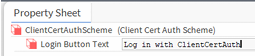
Sheet view, and edit the default Login Button Text as needed.
This login button is added to the login window for a browser station connection (in addition to any
SSOlogin buttons for other configured SSO schemes).
Step 4 Double-click UserService, and in the User Managerclick Newto create a new user.
Step 5 Intheconfiguration popup window click OKto accept default entries for Type to add and Number
to add.
Step 6 Inthesecondconfiguration window. enter user details (include a password otherwise you will be
prompted to enter one), click the Authentication Scheme Name dropdown list, select the
ClientCertAuthScheme, and click OK.
NOTE:At this point, you may see the following messages. If so, disregard the messages, click OK to close each popup window, and continue with the next step.
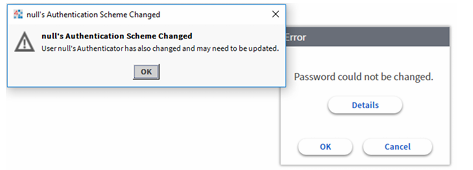
The newuser is added in the User Managerview.
Step 7 Double-click the new user to open a Property Sheetview, and click to expand Authenticator.
Step 8 UnderCertificate,click Choose Fileto open a File Chooser window and browse to locate and select the user-provided public certificate (*.pem) file and click OK.
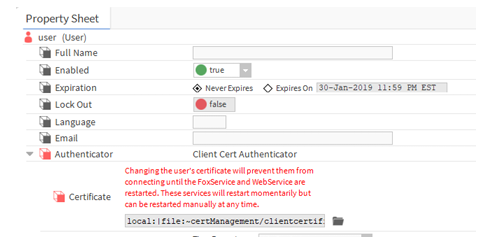
Anotice appears alerting you that the user’s certificate change will prevent them from connecting
until the FoxService and WebService are restarted.
Step 9 Click Save.
NOTE:The Saveaction triggers a timer to restart the Fox and Web services in 2-minutes. You can
also restart the services manually. The restart is necessary for your changes to take effect.
After this configuration is successfully completed, when the user attempts to login to the station via browser,
the browser first prompts the user to select the private certificate to use to authenticate to the station. Next,
the browser displays the station prelogin window where the user simply clicks the Login With ClientCer
tAuthbutton and immediately authenticates to the station. There is no need to enter username/password
credentials. For more details, see the procedure “Logging in via browser using client certificate
authentication”