
To log in, you will need:
- A computer connected to the same LAN as the gateway (via the same router) or a direct Ethernet connection between your computer and the gateway
- The "Basic Web Password" printed on the "KONA Test Summary Certificate" included in your gateway box
This password is unique to each gateway and required for the first login.
Step 1: Connect to the Gateway
- Connect the gateway to your computer or local router using an Ethernet cable.
- Confirm that your computer and the gateway are on the same network (for example, both connected to the same router).
Step 2: Open KONA Link in Your Browser
You can access KONA Link using either the gateway’s hostname or its IP address.
Option A – By Hostname
In your browser, enter the following URL format:
http://kona<GW variant><last 6 digits of GW ID>.local/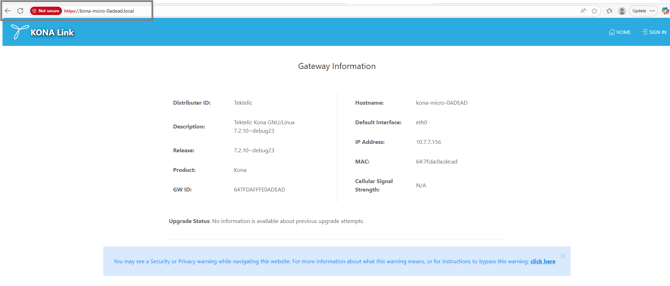
For example:
http://kona-micro-0011ab.local/
This method works only when your PC is on the same LAN as the gateway or directly connected to it.
Option B – By IP Address
If you know the gateway’s IP address (for example, from your router’s device list), you can connect using:
http:///<GW IP address>/
Example:
http://192.0.2.111/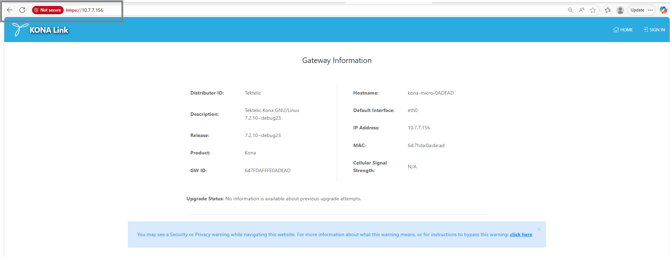
#Step 3: Log In
When the KONA Link login page appears:
- Enter the Basic Web Password from your KONA Test Summary Certificate.
- Click Sign In.
Once you are logged in, you will see "SETUP WIZARDS".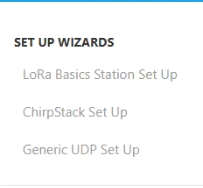
For a standard gateway deployment these wizards are not strictly required, but they can be used for additional integrations.
-Setup Wizards
“LoRa Basics Station Set Up” – for LoRa Basics Station–based Network Servers
This wizard allows integration with popular third‑party LoRaWAN network servers that implement the LoRa Basics Station interface, such as "The Things Stack" or "AWS IoT Core for LoRaWAN".
To use the Basics Station interface:
- Ensure the gateway is not connected to the KONA Core Network Server via the TEKTELIC Gateway Bridge.
- Frequency Subband: leave the default (1) or select the value recommended in your LNS documentation.
- For configuration files, contact your LNS provider.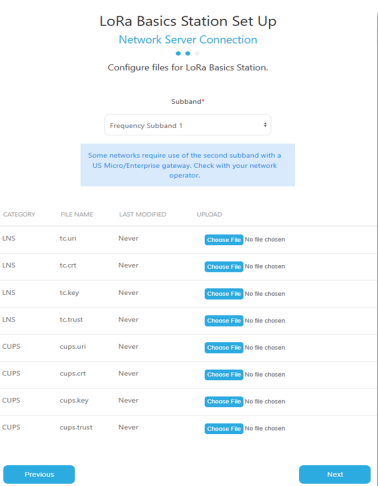
“ChirpStack Set Up” – for ChirpStack as Your LoRaWAN Network Server
Before using this wizard, install:
- ChirpStack Gateway Bridge
- ConfigMonitor
The ChirpStack setup requires packages from ChirpStack that are not part of the standard TEKTELIC BSP. Additional feed URLs may need to be configured. Follow the link provided in the interface to configure these.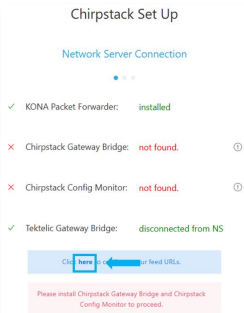
---
“Generic UDP Set Up” – for Semtech Legacy UDP Network Servers
Use this wizard for network servers that use Semtech’s legacy UDP interface.
It helps you configure the network to handle and process generic uplink messages.
On the Set-Up page you can review gateway information:
- Frequency Subband: choose a subband based on your LNS documentation
- Server address: view and confirm
- Upstream and Downstream ports: view configured ports 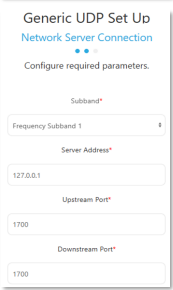
---
Network Configuration
By default, the gateway is configured for DHCP. You can switch from dynamic to static IP:
Home > Network Settings > Network Configuration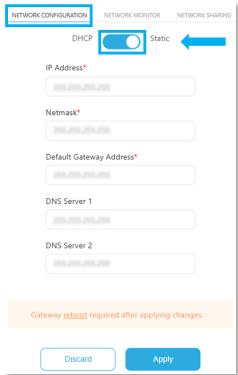
---
Network Failover Options
On the Network Monitor page, you can configure:
- Preferred Network Interface – main interface used to connect to the network (if more than one is available)
- Fallback Network Interface – interface used if the preferred one fails
- No Backhaul Reboot Time (seconds) – if no interface is available after this time, the gateway will reboot
- Connection Test Type – by default, ICMP Ping is used to test connectivity to a well‑known server. If ICMP is not supported in your network, a TCP connection test can be used instead.
- Ping Address – address used for the connection test. By default, this is Google DNS (8.8.8.8).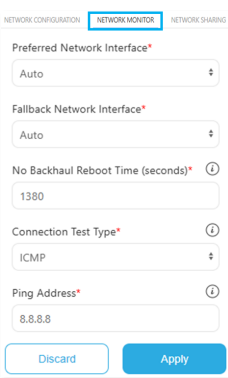
---
Cellular Settings
"Cellular Settings” – manage APN profiles, configure SIM slots, and adjust modem settings.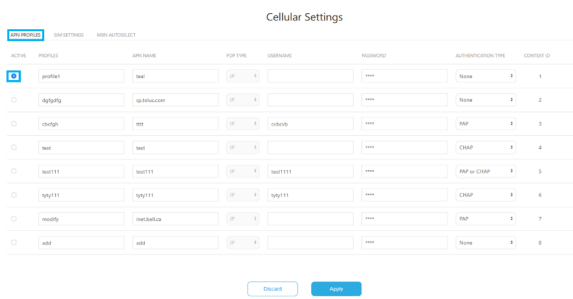
---
VPN Settings
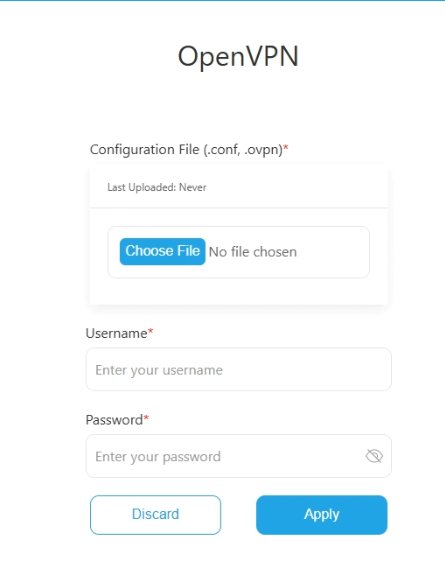
- “OpenVPN” – set up a secure VPN tunnel to connect the gateway to remote networks
- “IPsec” – establish a secure IPsec tunnel for private communication.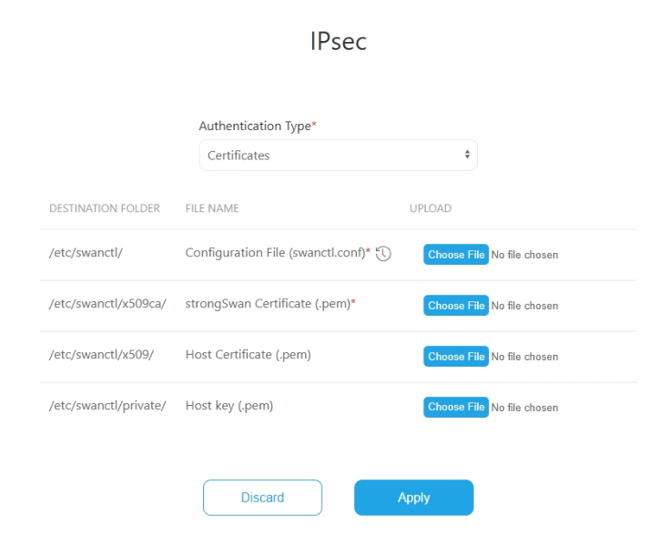
---
System Settings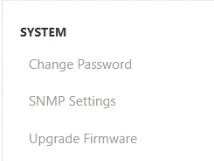
System Settings allow you to:
- Change Password
- Configure SNMP Settings
- Upgrade Firmware
---
Gateway Information
For general Gateway Information, go to:
> Home

This section includes key device information.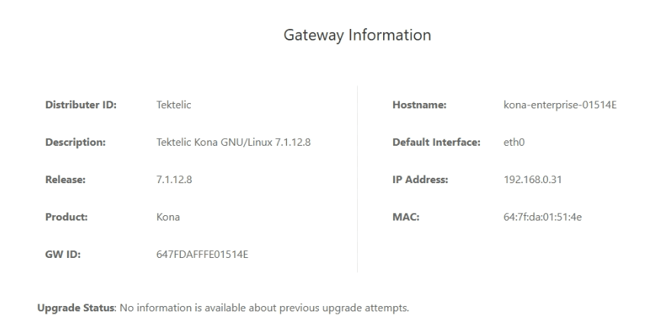
At the top of the main page, you will find the Power button. It allows you to reboot or shut down the gateway when required.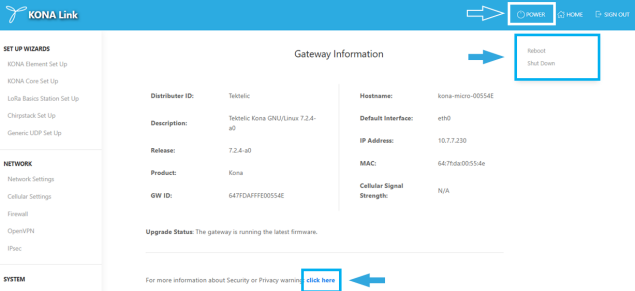
---
Adding a Device to Your Gateway
1. Create a Device Profile
Go to:
Home > EMBEDDED LNS > Device Profiles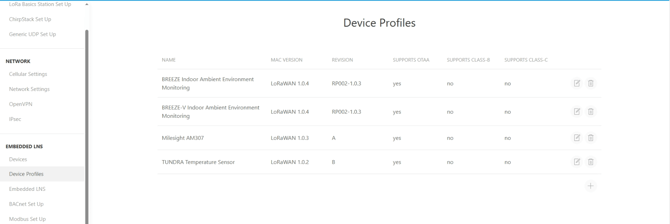
Here you can configure:
- Name
- Description
- MAC Version
- Parameters
- Option to flush the queue on activation
- Uplink Interval
- Device Status Request
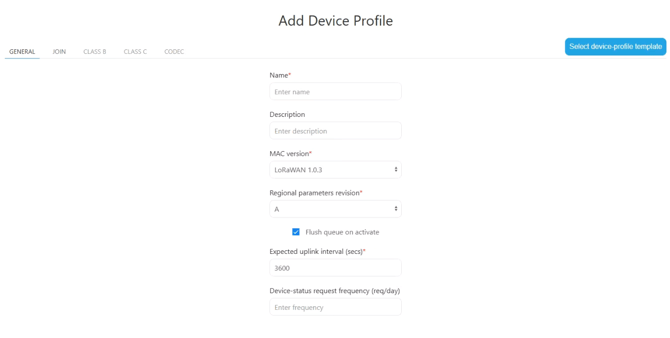
You can also change the device class from the default "CLASS A" to "CLASS B" or "CLASS C".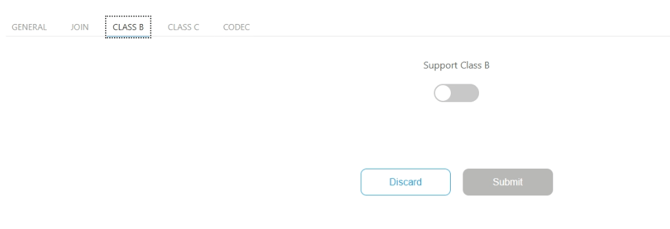
If this is a third‑party device (outside TEKTELIC branding), you will need to add your own codec.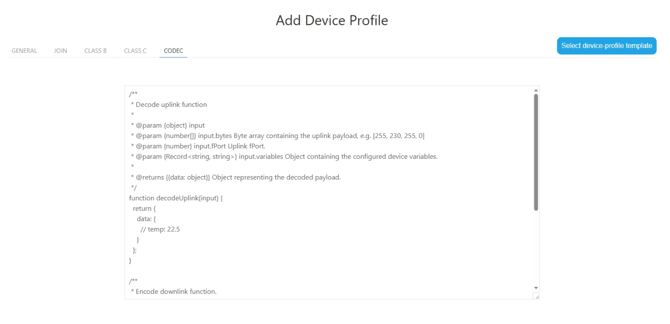
If you are communicating with a TEKTELIC branded device, select a suitable Device-Profile Template.
This provides different predefined profiles depending on the device you are using.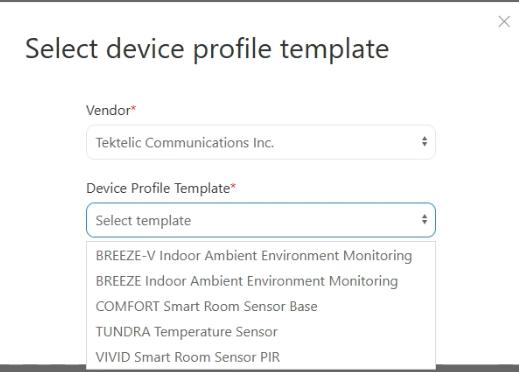
Once you have assigned or created your device profiles, you can add a device.
---
2. Add a Device
Go to:
> Home > EMBEDDED LNS > Devices
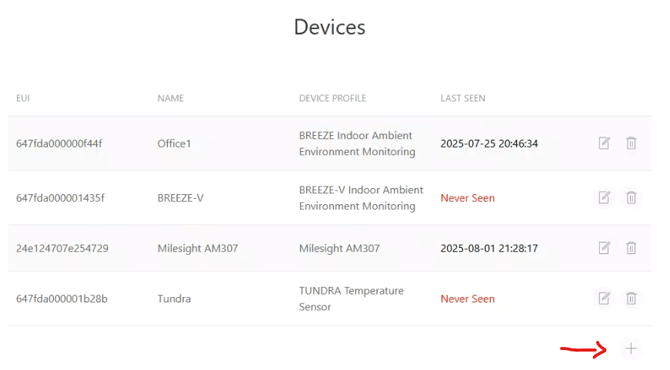
Fill in:
- Device EUI
- Device Name
- Description of Device (optional)
- Device Profile (your newly assigned or created profile)
- Join EUI
- Application Key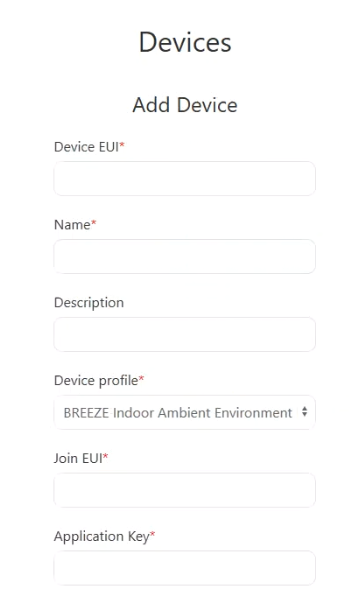
Once all details are completed, click Submit.
Your device is now created.
---
3. Enable and Configure BACnet Protocol
Go to:
> Home > EMBEDDED LNS > BACnet Set Up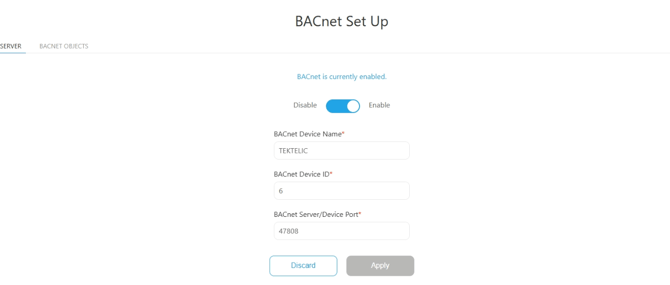
Configure:
- BACnet Device Name
- BACnet Device ID
- BACnet Service/Device Port
Then set up your BACnet Objects, assigning your device accordingly.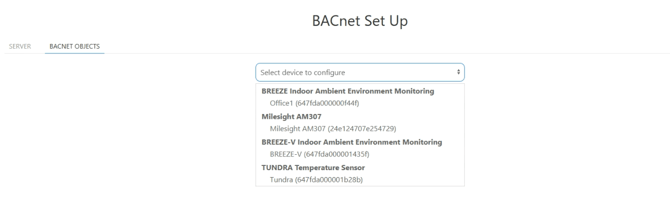
This is where your added Decoder/Codec is used.
If the codec is configured correctly, your objects will be exposed in the “BACnet Objects” panel.