
MClimate 16ASPM – Milesight UG65/UG67 Integration Guide
1. Create an Application
First, create an application for your device
For this guide, we will be using BACnet and HTTPS.
BACnet is assigned to the application by default.
HTTPS must be added as an additional protocol.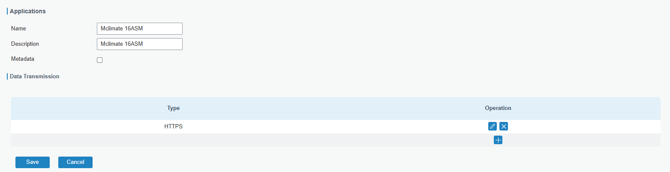
Before adding the device to the gateway, you will also need to create a Custom Payload Codec:
Navigate to: Network Server > Payload Codec > Custom Payload Codec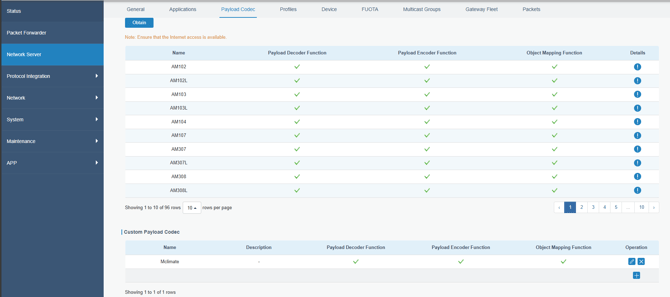
2. Custom Payload Codec
For convenience, a prebuilt codec has already been created, tested, and validated.
The codec is separated into three parts:
-Decoder
-Encoder
-Object Mapping
You can download the codec here:
https://drive.google.com/file/d/1wf8gqAxWQTDSUrj5FA-X2GhGFGlFGtm0/view?usp=sharing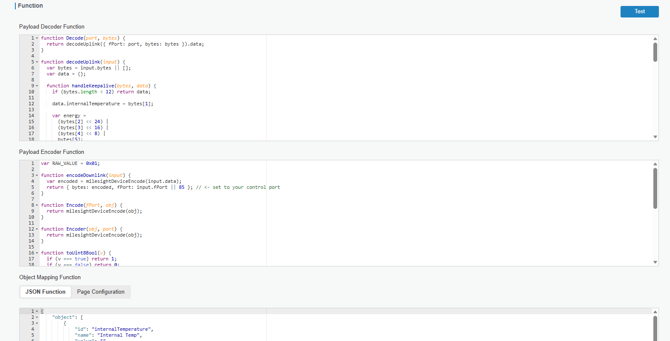
3. Add the Device
- Go to: Network Server > Device > Add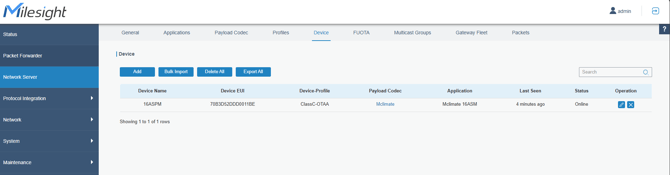
Populate the following fields:
- Device Name
- Description
- Device EUI (provided)
- Application (the application you just created)
- Payload Codec (select the custom codec you created)
- fPort: 1
- Application Key (provided)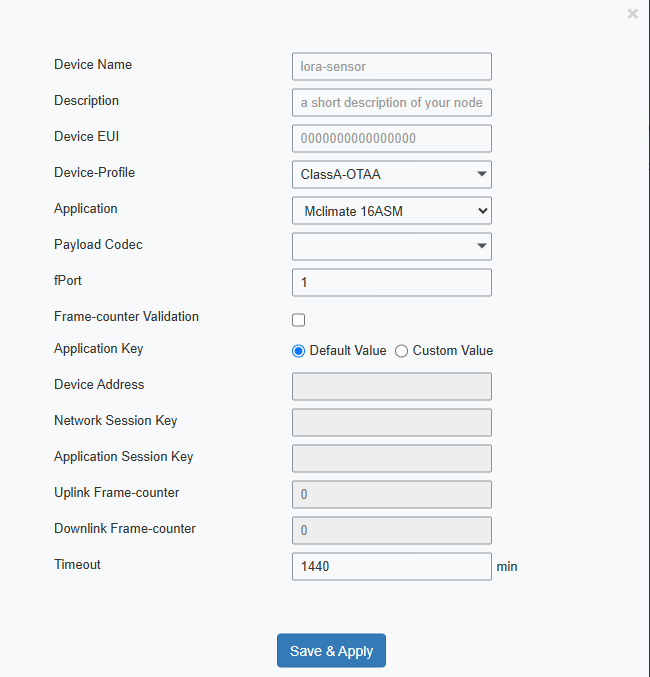
Save and apply your changes. Your device will now be registered on the gateway.
4. View Incoming Packets
To verify communication:
- Go to: Network Server > Packets
Here you can see your decoded incoming data.
Once you have confirmed you are receiving data, you can expose these points via BACnet:
- Navigate to: Protocol Integration > BACnet Server > BACnet Object
As the BACnet objects have already been mapped, you only need to press add on the required BACnet object(s).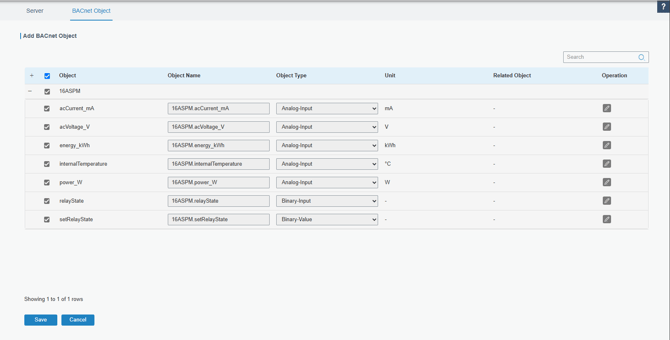
From a standard BACnet discovery, you will see the exposed objects available.
To confirm that BACnet write commands are functioning, you can, for example, toggle the relay using the SetRelayState object, as below. 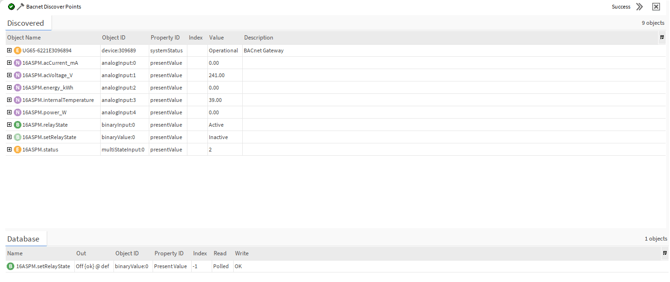
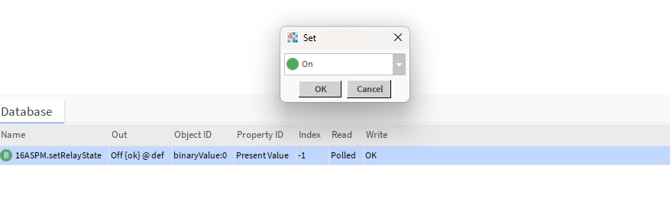
Once this command is parsed, you will see the corresponding downlink updates in the Packets tab.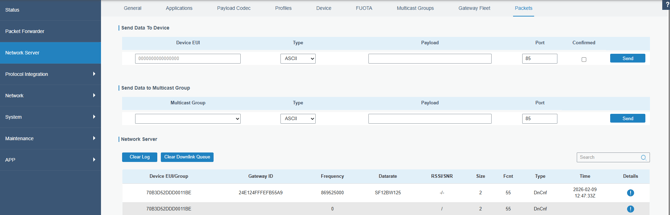
5. Writing to the Device via HTTPS ( InnonQuickAPI )
You can also write to the device using HTTP. In this guide we use the InnonQuickAPI custom Niagara module.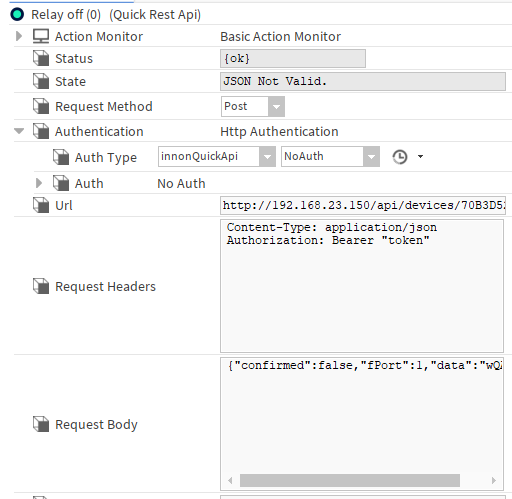
To send a message to the device, use the following URL structure:
- https://ipaddress/api/devices/devEUI/queue
- ipaddress = the UG65/UG67 IP address
- devEUI = the device’s EUI
- queue = the gateway message queue endpoint
To authenticate against the UG65/UG67, you must include the following HTTP headers:
- Content-Type: application/json
- Authorization: Bearer "token"
You can obtain the Bearer token from the UG65’s web UI under the browser developer tools.
6. Example HTTPS Payloads (Relay Control)
To send a command to the device, post a JSON payload to the URL above.
For example, to switch the relay off*and on:
- Relay OFF (0)
{"confirmed": false, "fPort": 1, "data": "wQA="}
- Relay ON (1)
{"confirmed": false, "fPort": 1, "data": "wQE="}
These commands are using BASE64 addressing for the on and off values
This will be visible as downlinks in the Packets tab and should correspond to relay state changes on the device.