
Overview
This guide explains how to import and export Trend schedules into and out of a Niagara station (Supervisor or JACE), and provides guidance for graphics setup.
This process allows you to:
-Import schedules from a Trend controller (read-only)
-Export schedules from Niagara to a Trend controller (write-only)
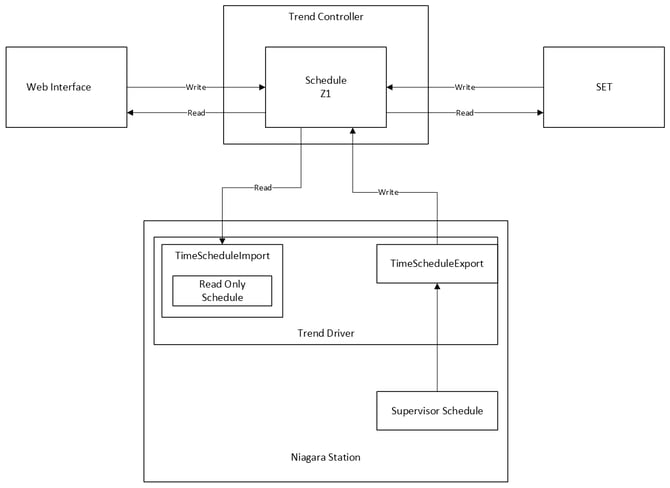
Fig 1. Diagram showing how the Trend Schedule can be read from and written to.
Requirements
-A running Niagara station with the Trend Driver configured
-Trend devices discovered and present in the Niagara database
-A Trend controller with at least one schedule configured
Note: Driver setup and device discovery are assumed complete and are not covered in this guide.
Set up
Time schedule Import
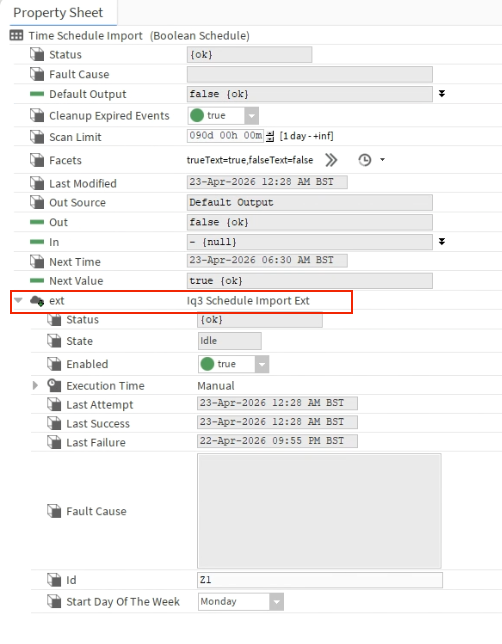
This creates a read only copy of the Trend schedule in the Niagara station. This schedule cannot be edited directly in Niagara but will reflect any changes made within the Trend controller either via SET or the controller web interface.
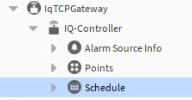
- Navigate to:IqTCPGateway -> IQ-Controller -> Schedule
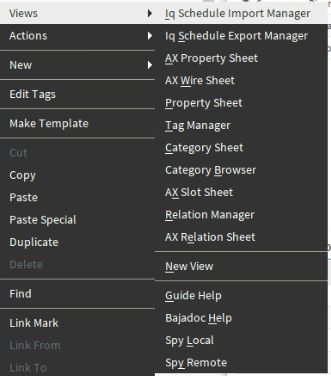
- Select View: Iq ScheduleImportManager
- Click Discover
- Select schedules you want import
- Click Add
- Adjust parameters
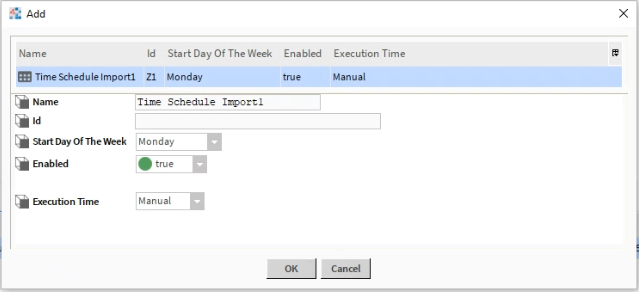
- Name: This will be the display name shown in the Niagara station
- Id: Leave blank this will be auto filled when added
- Start Day of the week: Select the desired start day
- Enabled: Set to true
- Execution time: Manual, Daily, Interval
- Check the status shows {ok}

To manually import any changes made to the schedule:
- Navigate to the Iq3 Schedule Import Ext within the schedule
- Right click it
- Select action then execute
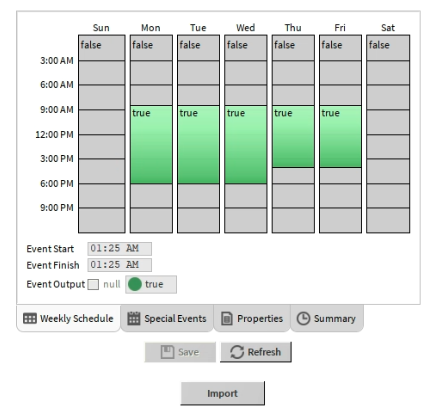
When setting up graphics you can create an action button to manually import the changes:
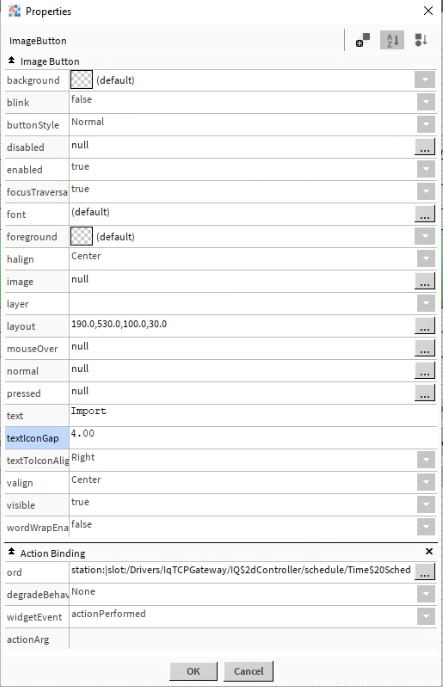
- Create and ActionButton (from KitPx Pallet)
- Open the properties
- Change the ‘text’ field to Import
- For the Action Binding ‘ord’ field enter the path to the Iq3 Schedule Import Ext
- Append the ord with /execute
For example: station:|slot:/Drivers/IqTCPGateway/IQ$2dController/schedule/Time$20Schedule$20Import/ext/execute
Note: After pressing the “Import” button you may still have to press the refresh button on the schedule Workplace View Widget before seeing the changes.
Time schedule Export
A Supervisor Schedule can exist anywhere on the station and when linked to the Time schedule export will write any changes to the schedule to the Trend controller. Note that this schedule may not reflect the actual schedule within the controller as changes can be made to the Trend schedule via SET and the web browser that will not be shown on this schedule. This Supervisor schedule is write only.
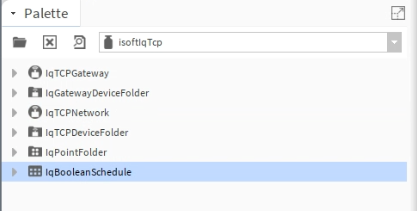
- Open the isoftIqTcp pallet
- Drop the IqBooleanSchedule anywhere in the station, this will be the Supervisor Schedule
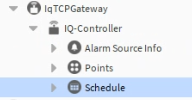
- Navigate to: IqTCPGateway -> IQ-Controller -> Schedule
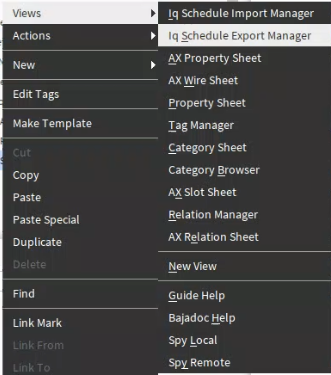
- Select View: Iq ScheduleExportManager
- Click Discover
- Select schedules you want import
- Click Add
- Adjust parameters
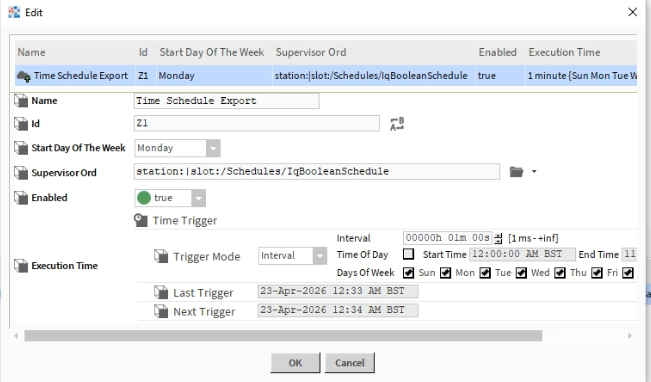
- Name: This will be the display name shown in the Niagara station
- Id: Leave blank this will be auto filled when added
- Start Day of the week: Select the desired start day
- Enabled: Set to true
- Supervisor Ord: Enter the ord of the ‘Supervisor Schedule’
- Execution time: Manual, Daily, Interval
- Check the status shows {ok}

When setting up graphics you can create an action button to manually import the changes:
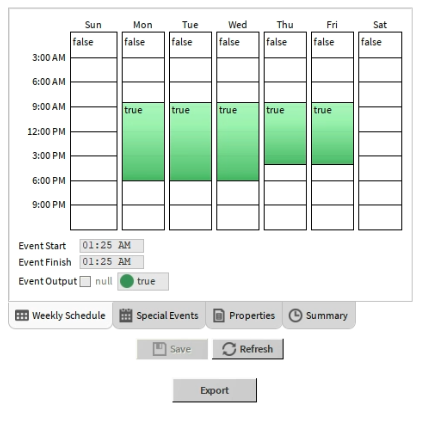
- Create and ActionButton (from KitPx Pallet)
- Open the properties
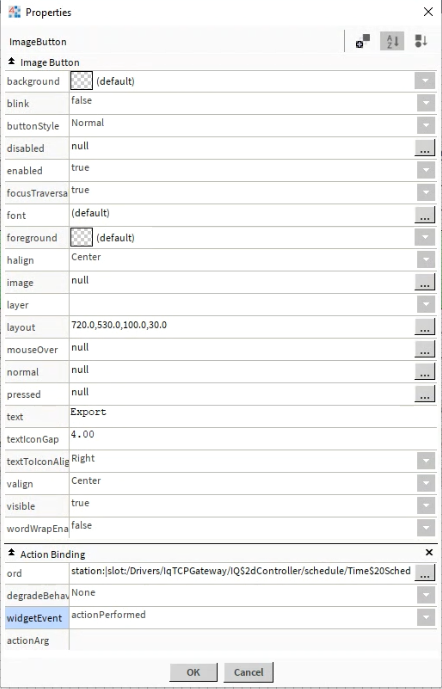
- Change the ‘text’ field to Export
- For the Action Binding ‘ord’ field enter the path to the Iq3 Schedule Export Ext
- Append the ord with /execute
For example:
station:|slot:/Drivers/IqTCPGateway/IQ$2dController/schedule/Time$20Schedule$20Export/execute
Verification
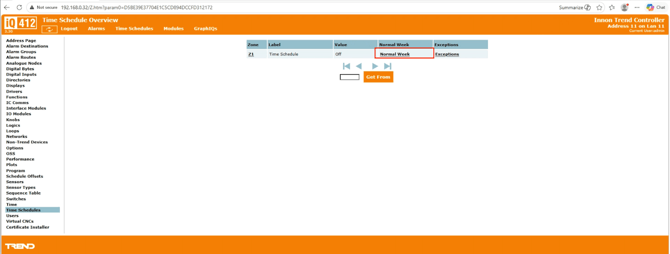
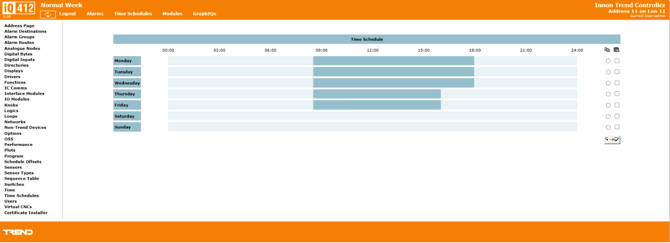
You can check that the schedules are being imported and exported correctly through the Trend controller web interface, Time Schedule page and clicking the “Normal Week” Link.
Troubleshooting
Issue:
No changes are being seen after pressing the import button.
Possible causes / fixes:
-Try refreshing the web page, or pressing the refreshing button on the schedule widget.
-Allow some time for the changes to be written to the Trend controller then imported back into the Niagara station before refreshing the page.
Issue:
The schedule in SET or the web browser doesn’t match the Supervisor Schedule.
Possible causes / fixes:
-Set the supervisor schedule to interval or daily so it automatically updates the schedule on the Trend controller.
Issues:
Changes made to the supervisor schedule are not reflected in the Trend schedule
Possible causes / fixes:
-Ensure that the ord in the Iq3ScheeduleExport is correct
-Ensure that the supervisor schedule is a IqBooleanSchedule from the isoftIqTcp pallet
-Ensure that the Save button is pressed after making any changes.
References/ Resources
Trend Driver Manual
https://downloads.innon.com/hubfs/downloads.innon.com/Tridium%20Niagara/Trend%20Driver/IP/Documents/Tridium_Niagara_Trend_Driver_N4_IqTcp_Document.pdf?hsLang=en
Downloads Page
https://downloads.innon.com/tridium-niagara-trend-driver-download