To enable and utilise the built in BACnet server on the EG71 you will need to head to Home > Data Service > Data Forwarding > Add > BACnet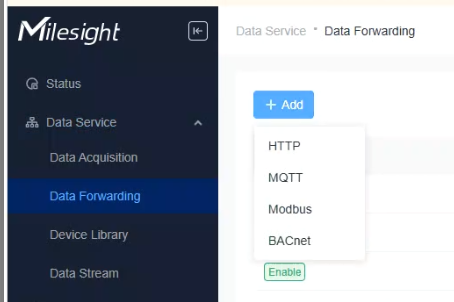
Once you have selected "BACnet"
You will have to fill out the necessary details for the Built in BACnet server.
-Name
-UDP Port
-Network Interface
-Device Instance Nr
-Device Name
-Description
Then a choice of BBMD's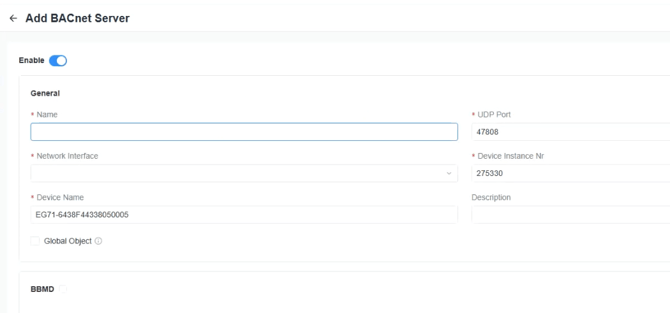
Once you have enabled your BACnet server, you will now need to assign objects to be exported.
*Please note*
If you are looking to export objects from a 3rd party (Non-Milesight Branded device) then please see our Milesight EG71 Integration, Setup And Configuration guide
Inside "Adding Third-Party Devices" 
Click into the value that is displaying "Object Count" and you will be greeted by a new UI which will allow you to add your desired BACnet objects.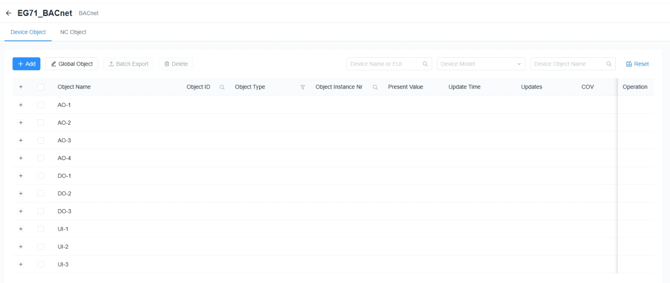
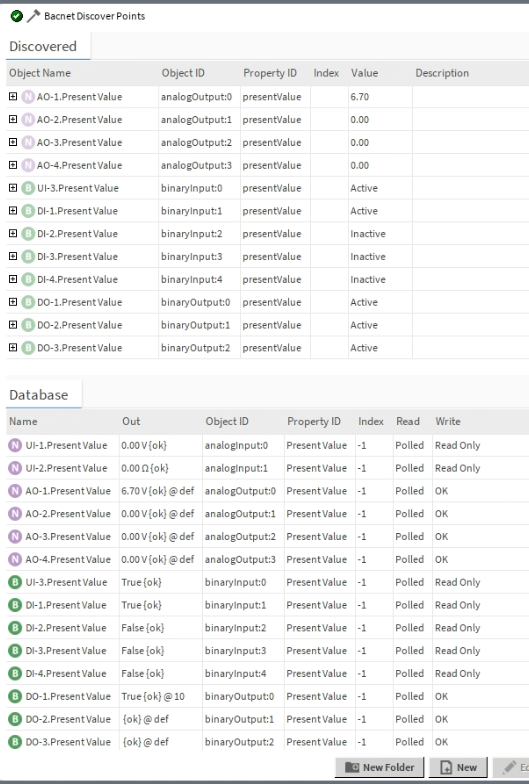
Once you have added your desired objects, you will need to simply discover EG71 over a BACnet discovery tool.
In this case, Niagara.
To which a simple BACnet discovery will display the objects exposed within the gateway.