Connection Methods
Just like the UG65, you can connect to the EG71 either via its onboard Wi-Fi or through one of the Ethernet ports.
Connecting via Wi-Fi
1. On your laptop or PC, search for the Wi-Fi network (SSID):`Gateway_XXXXXX`
where `XXXXXX` are the last 6 digits of the Wi-Fi MAC address.
2. Connect using the default Wi-Fi password:
`iotpassword`
3. Open a web browser (Chrome is highly recommended).
4. In the address bar, enter:
https://192.168.2.1
5. When the web GUI loads, log in with the default credentials:
- Username: admin
- Password: password
Connecting via Ethernet (ETH)
1. Connect your laptop or PC to the **ETH2** port of the EG71 using an Ethernet cable.
2. Assign a suitable IP address to your laptop/PC in the same range as the gateway.3. On the EG71 screen:
- Press any button to wake the screen.
- Press the navigation button to open the interface Status menu.
- Use the button again to scroll to the Ethernet Status page and note the ETH1/ETH2 IP address (format: `xx.xx.xx.xx`).
`https://xx.xx.xx.xx`
replacing with the IP address you obtained.
5. Log in using the default credentials:- Username: admin
- Password: password
Initial Setup
For a quick first-time configuration, you can use the Setup Wizard.
The wizard guides you through basic device settings and typical configuration options.


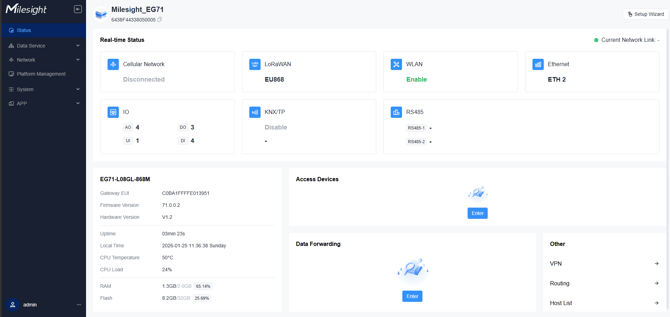
Status Overview
The homepage of the web GUI displays various status indicators for the unit, including:
IO Status 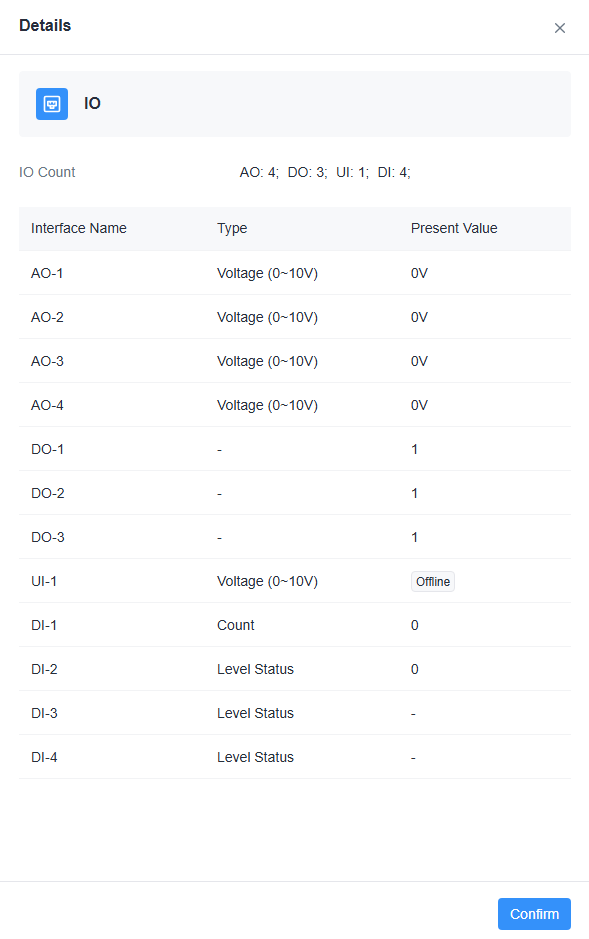
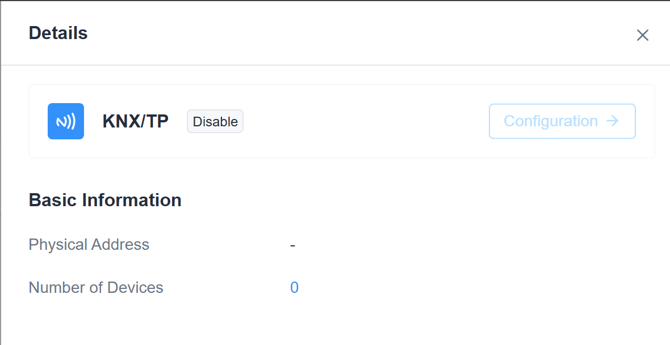
KNX/TP Status
RS485 Status
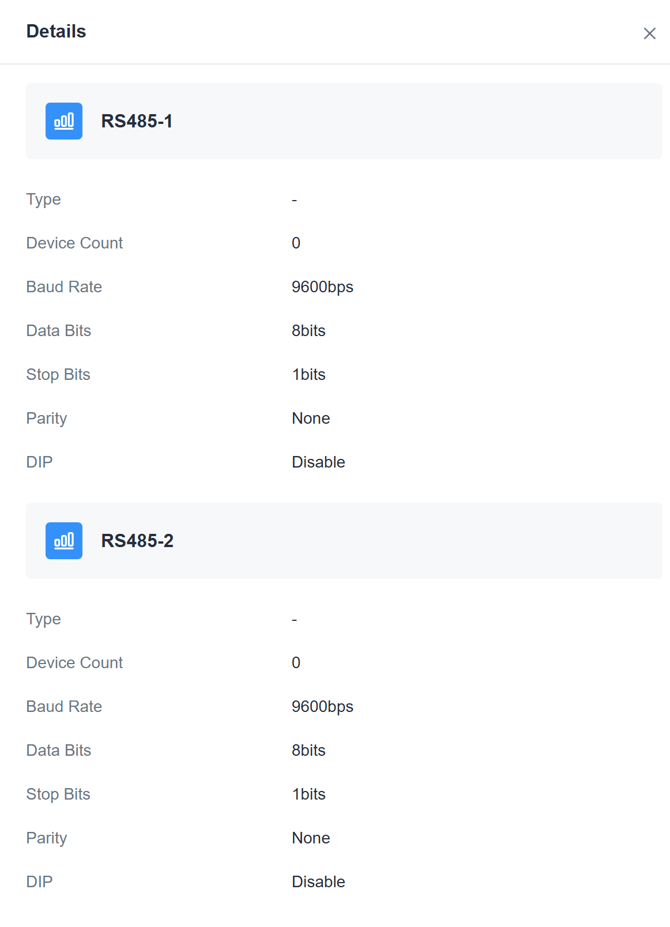
Cellular, Ethernet, WLAN, and LoRa status

Adding Protocol Functionality
To enable and configure different protocol functions on the EG71:
1. Go to:
Data Service > Data Acquisition > Device Access Network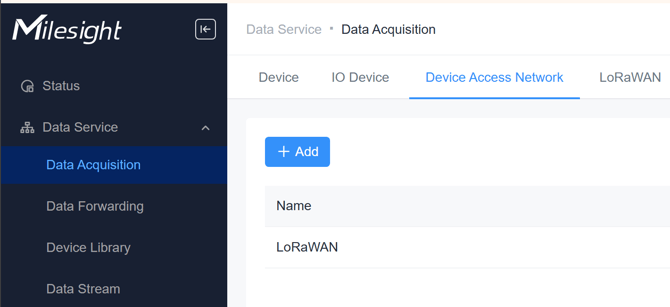
2. Here you can add and configure the different Access Types as required
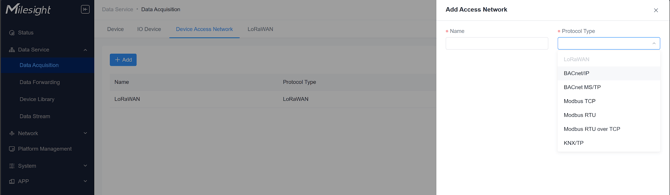
Adding Devices
The gateway supports adding up to 2000 devices using various methods.
Add Devices Manually
1. On the left bar, select Data Service > Data Acquisition page.
2. On the top bar, select Device tab.
3. Click +Manually Add to add a new device.
4. Configure the basic information of the device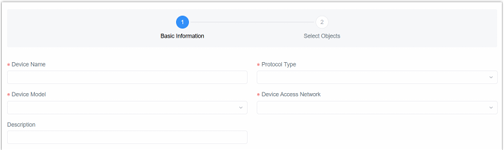
5.Click Next Step to select objects for this device
If no device model is selected, there will be no object to select, and the device will be
created automatically.
If the device model is selected in previous step,
a. Select the required objects to add to the device.
b. Click Complete to finish adding the device, or click Complete and add another
one to add a new device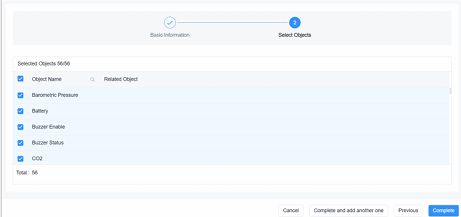
6. After adding, check the device status in the device list
If the device is still not online, navigate to Data Service > Data Stream page to check
for communication between the device and the gateway
Adding Third‑Party Devices
If you need to add a device that is not part of the standard Milesight range:
1. Navigate to:
Data Service > Device Library > Custom Device Repository
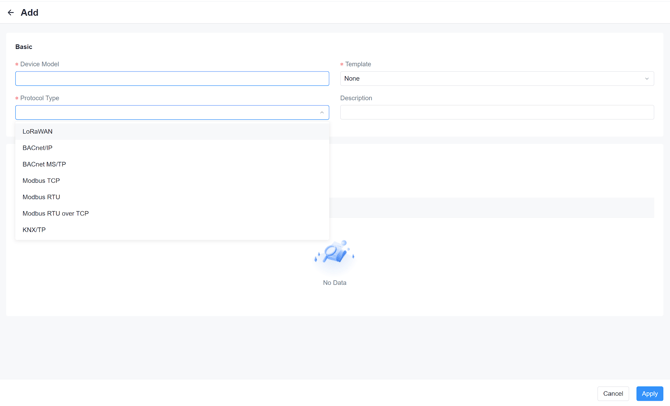
3. Then add the device Objects, including:
- Object Name
- Object Description
- Data Type
- Object Instance Number
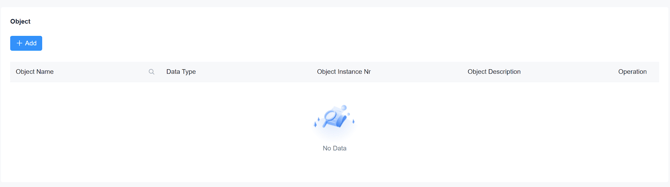
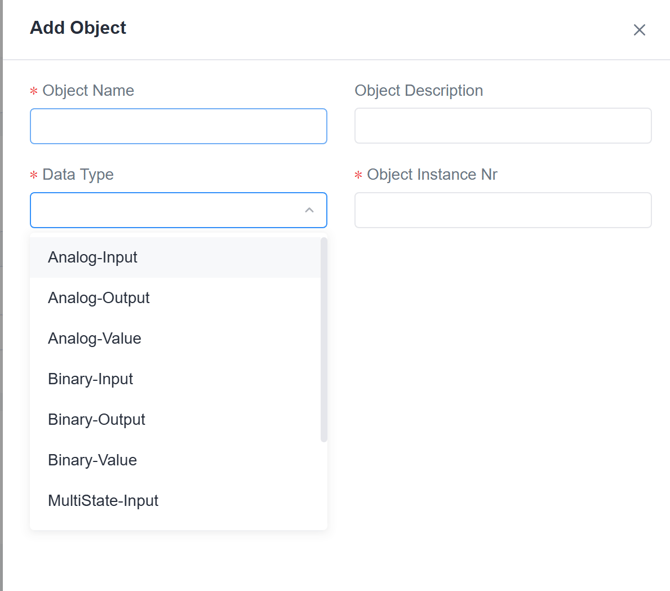
Adding the Device
Once your objects are created:
1. Go to:Data Service > Data Acquisition > Device > Manually Add
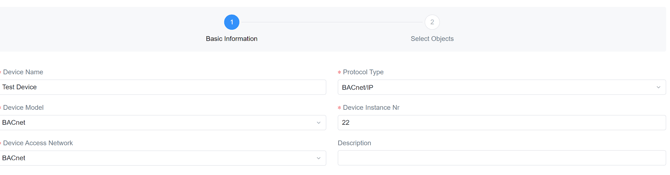
2. Configure:
- Device Name
- Device Model (your added model)
- Protocol Type (your configured protocol)
- Access Network (your configured access network)
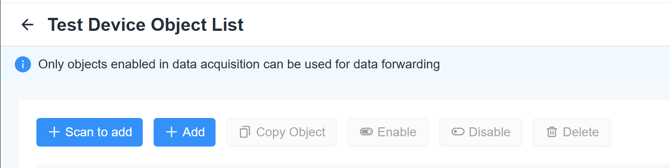
3. You can now:
- Add the objects you created manually, or
- Use the Scan function to add them automatically where supported.
IO Configuration
The web UI supports IO configuration via:
Data Service > Data Acquisition > IO Device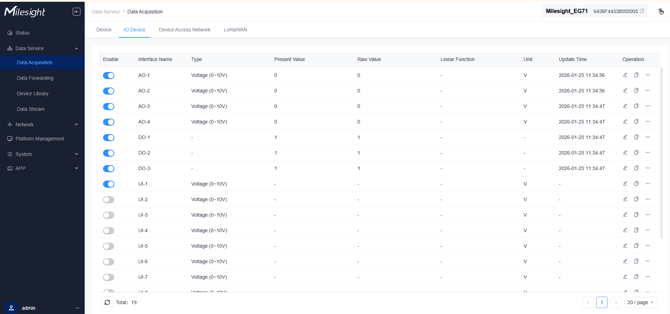
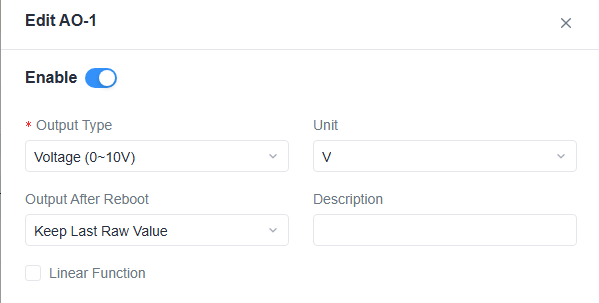
To edit IO parameters, click the edit icon next to the IO point you want to change.
You can configure:
- Output Type
- Unit
- Description
- Desired output state after reboot 
Data Forwarding (Exporting Data)
To forward objects from the EG71 to a supervisor, JACE, or cloud system:
1. Go to:
Data Service > Data Forwarding > Add

2.Choose from the available forwarding protocols:
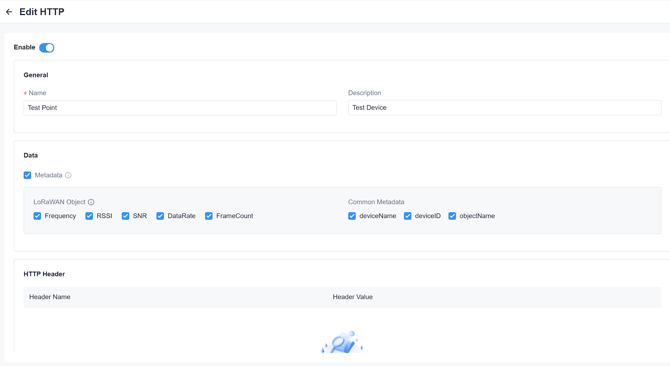
- HTTP
- Select the required metadata and payload as needed.
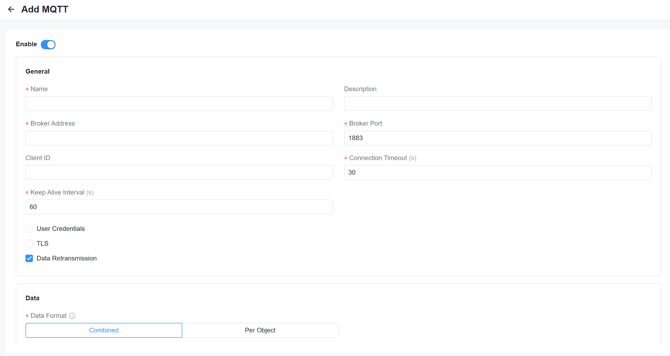
- MQTT
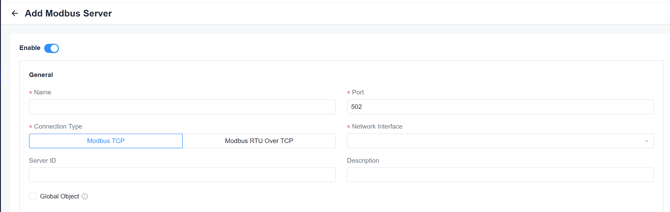
- Built‑in Modbus server
- Built‑in BACnet server
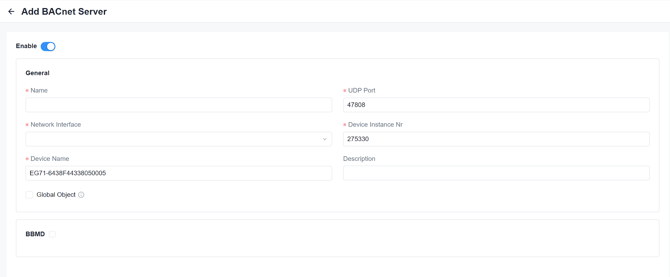
For assistance with setting up the BACnet/Modbus Server please use the below guides
"Milesight EG71 BACnet Setup"
"Milesight EG71 Modbus Setup"
Read/Write Devices
The gateway supports reading device data or send commands to devices directly
Send Command to a LoRaWAN® Device
1. On the left bar, select Data Service > Data Acquisition page.
2. On the top bar, select Device tab.
3. Select the desired device, click  to configure a downlink payload
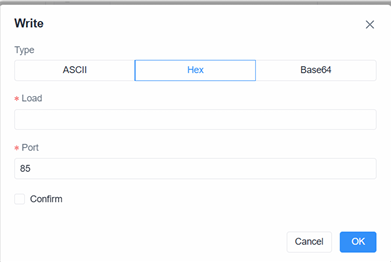
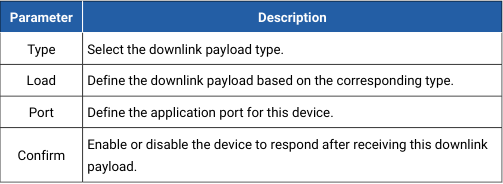
4. Click OK to send the downlink payload.
5. Navigate to Data Service > Data Stream to check the downlink sending status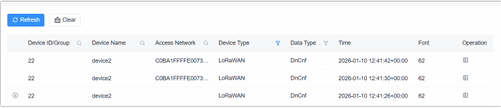
Read/Write 3rd Party Device's
1. On the left bar, select Data Service > Data Acquisition page.
|
2. On the top bar, select Device tab.
3. Select the desired device, then click the object count value to navigate to the Object
List page.
4. Follow the above steps to add and enable objects.
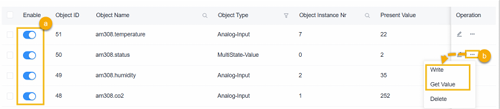
5. Click  of the desired object in the Operation column.
6. Select Get Value to read latest value, or click Write to write this value. The read/write permission depends on the data type or access mode