
Overview
This guide will walk you through setting up EG71 as an MQTT client allowing you to publish the IO values to a broker and write values to the AO and DO points via a Niagara Station.
This guide uses HiveMQ a public MQTT broker, for demonstration purposes. Public brokers are not secure and should not be used in production environments, as data is unencrypted, accessible to others, and not guaranteed to be reliable.
Note this guide does not cover the following:
-
-setting up or maintaining of MQTT brokers
-
-how to install and set up the abstract MQTT driver in Niagara
-
-how to set up the EG71 onboard IO
Requirements
-
Milesight EG71 with the onboard IO configured
-
Details of a MQTT broker that you can connect to
-
An internet connection if the Broker is not hosted on your local network
-
A running Niagara station with the MQTT driver and JSON tool kit installed
Set up
Setting up the Data Forwarding
-
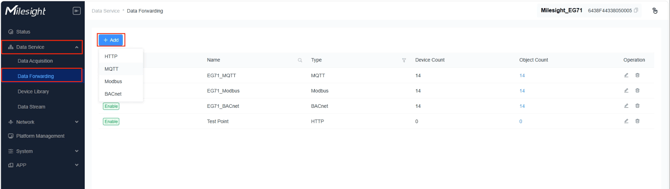
Navigate to: Data Service -> Data Forwarding
-
Click Add
-
Select MQTT
-
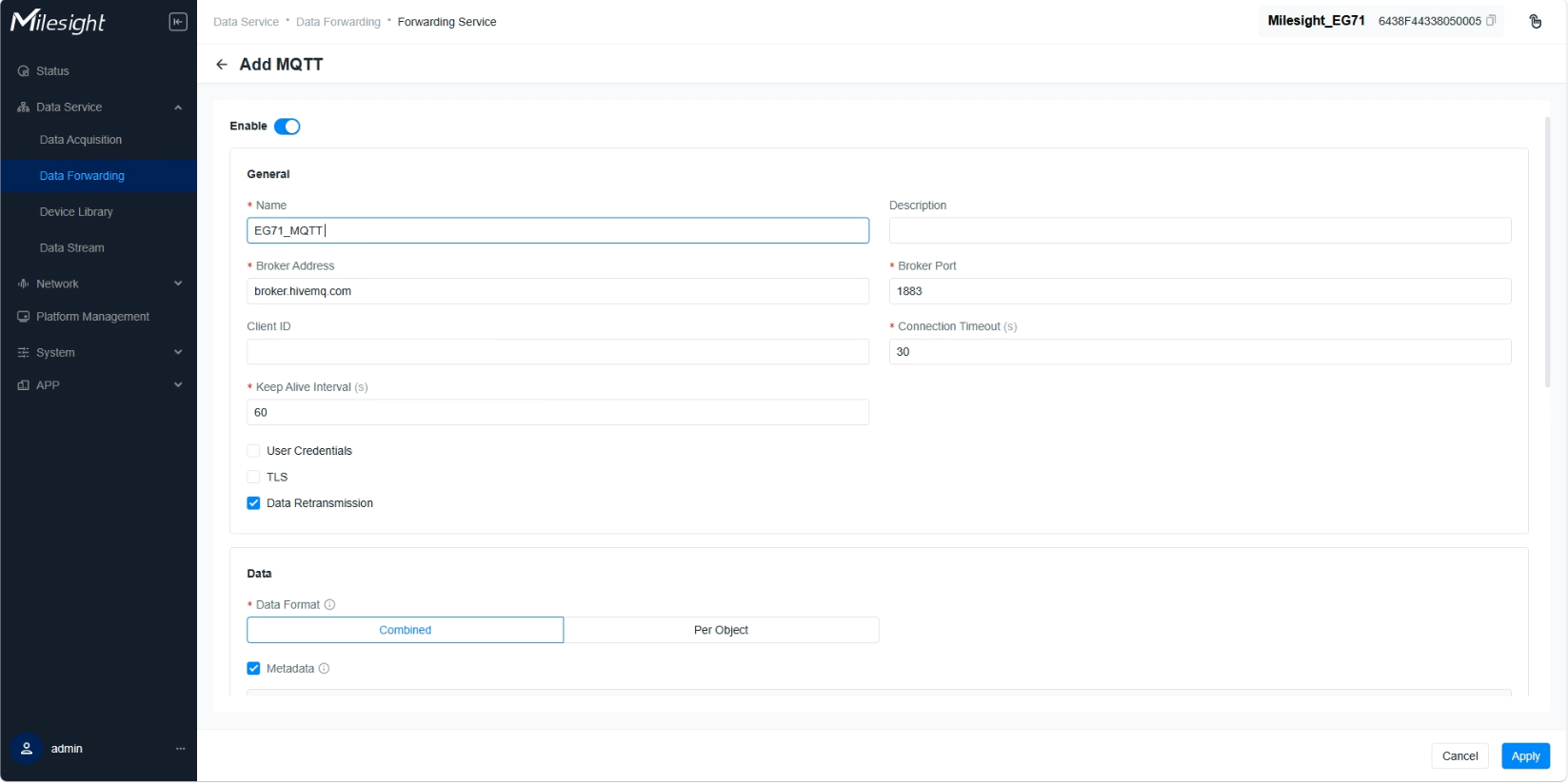
Fill out the required properties:
-
Name: EG71_MQTT
-
Broker Address: broker.hivemq.com
-
Broker Port: 1883
-
Connection Timeout: 30
-
Keep Alive Interval: 60
-
-
Click Apply
-
Click the Add button
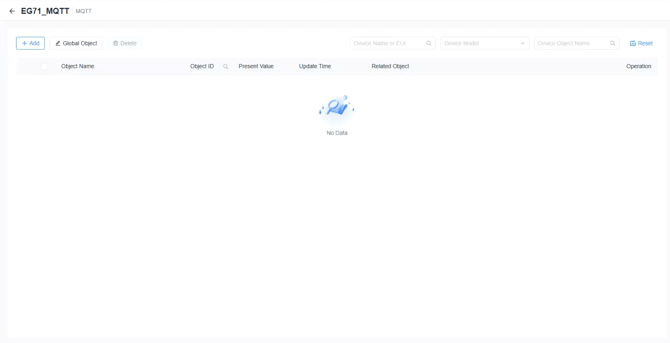
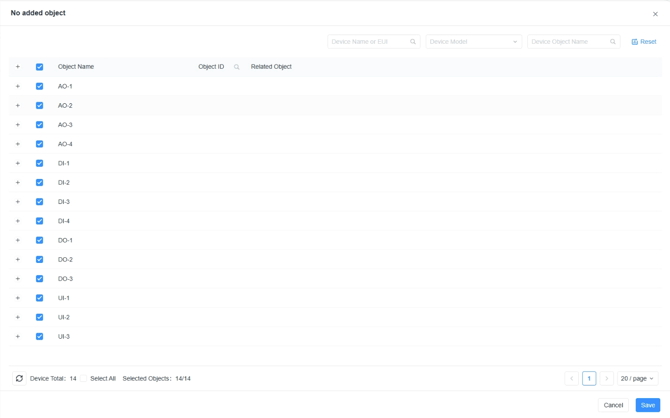
- Select the IO points to be forwarded
- Click Save
- Click the Global Object Button

- Check the connection status is connected if not press connect

If the information is correct the connection status will show connected.
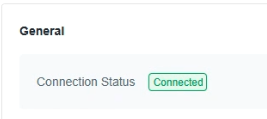
Setting up the topics for sending data to the broker
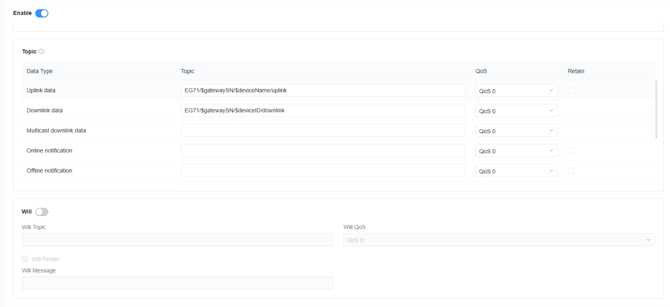
The EG71 uses wildcard placeholders to generate topics:
"$gatewaySN", "$deviceName", "$devEUI", "$deveui", "objectID", "objectName"
By default the uplink topic for any given IO point will be:
EG71/$gatewaySN/$deviceName/uplink
So for example:
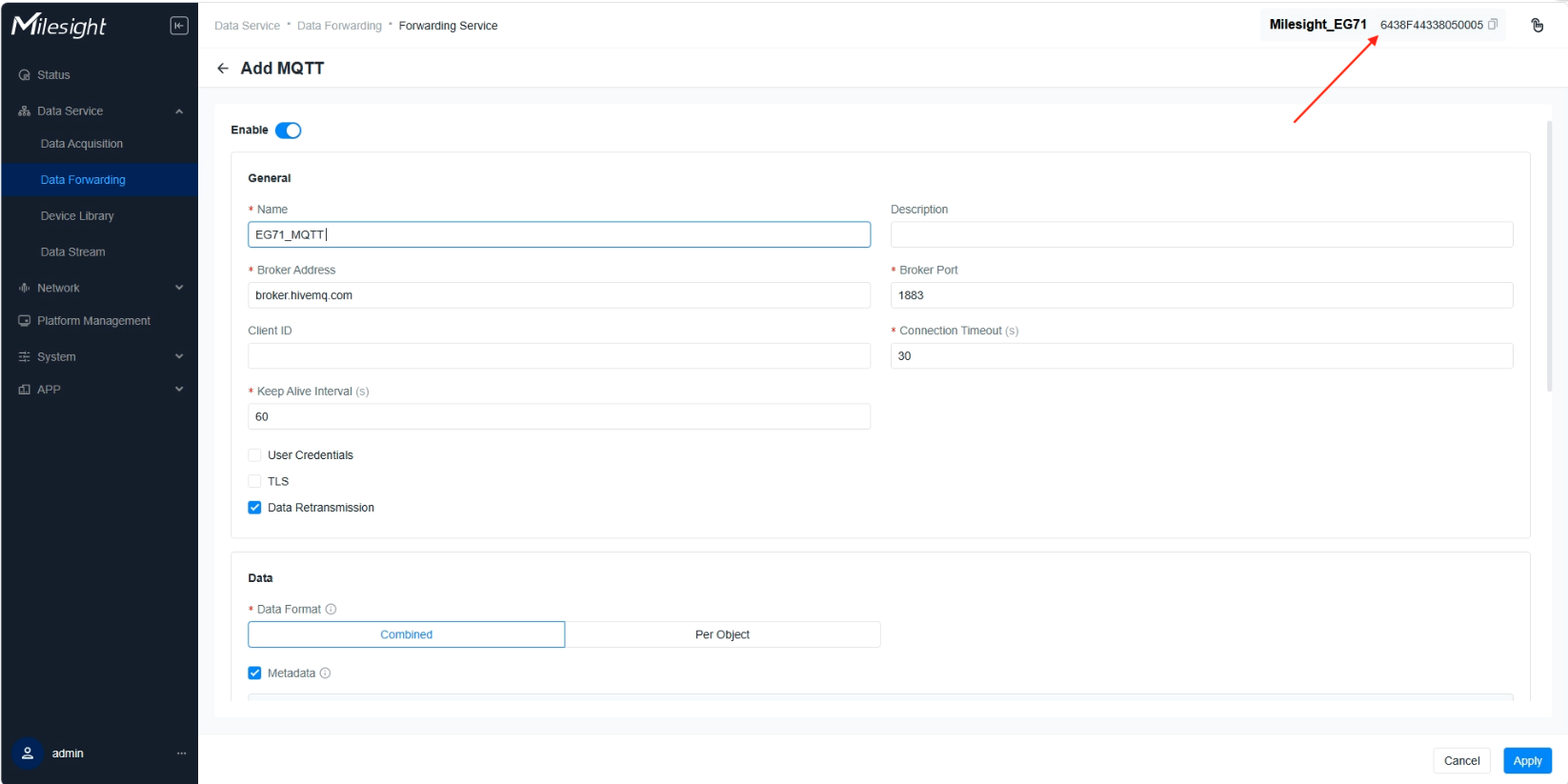
If i want to read the AO-2 on the device with a serial number of 6438F44338050005
I would use topic:
EG71/6438F44338050005/AO-2/uplink
To edit the wildcard place holders navigate to:
Data Service -> Data Forwarding -> Press the  icon on the MQTT service
scroll to the bottom of the page
Note the serial number can be found in the top right of the screen
Setting up the payloads
This section explains how to structure the JSON payloads sent to the broker and read by Niagara.
By default the payload will contain all of the meta data
An example of the default payload:
{

  "Present Value": 1.1,

  "applicationID": 4,

  "applicationName": "EG71_MQTT",

  "deviceID": 1,

  "deviceName": "AO-1",

  "gatewaySN": "6438F44338050005",

  "gatewayTime": "2026-04-24T10:22:49+01:00",

  "object": [

    {

      "objectID": 1,

      "objectName": "Present Value"

    }

  ]

}
Meta data can be selected from the Edit MQTT menu
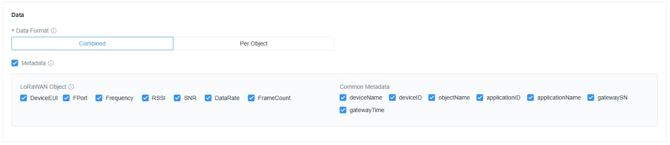
For example we can select just the deviceName, objectID & gateway time selected and the reduced payload would look like this.
{

  "Present Value": 1.1,

  "deviceName": "AO-1",

  "gatewayTime": "2026-04-24T10:34:08+01:00",

  "object": [

    {

      "objectID": 2,

      "objectName": "Present Value"

    }

  ]

}
Reading the Data from the Broker in Niagara
In this section we will configure a new MQTT device on the Niagara station and set up a point to read the current value of an analogue output on the EG71.
-
Add a AbstractMqttDevice to the AbstractMqttDriverNetwork
-
Add a defaultAuthenticator to the AbstractMqttDevice
-
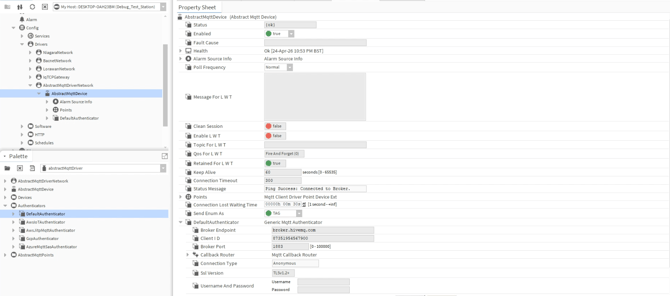
Configure the device to connect to the same Broker as the EG71, for this guide please see details below:
-
Enter the following under DefaultAuthinticator:
-
Broker Endpoint: broker.hivemq.com
-
Broker Port: 1883
-
Client ID: This can be anything you like
-
Connection type: Select Anonymous
-
Username and password: These can be left blank
-
-
Right Click the AbstractMqttDevice
-
Select Action -> Connect
If the properties have been filled out correctly the status of the driver will change to {ok} and the Status message will show “Connected”.

With the driver setup and connected we can begin pulling in data from the broker.
-
Navigate to AbstractMqttDevice points folder Mqtt Client Driver Points Manager View
-
Click new
-
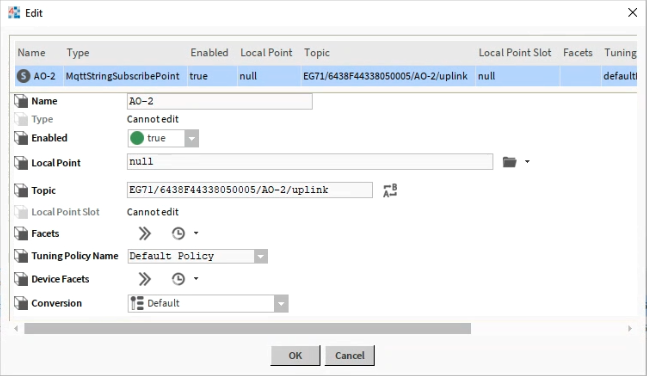
Add a MqttStringSubscribePoint
- Fill out the properties
-
Name: AO-2
-
Topic: EG71/6438F44338050005/AO-2/uplink
-
- Right Click the AbstractMqttDevice select Actions -> Subscribe All
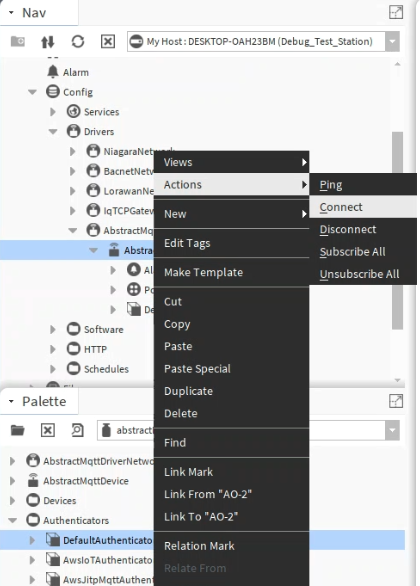
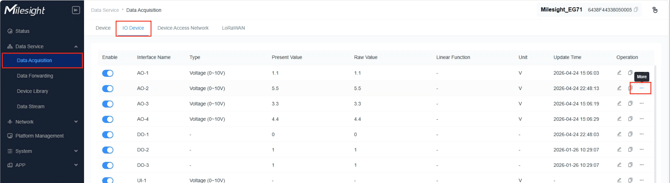
Note when first adding a point it will show as stale until the topic is written to by the client. We can force it by adjusting the value of the AO-2 in the EG71.
-
Navigate to: Data Service -> Data Acquisition -> IO Device (tab)
-
Select the 3 dots for AO-2 on the right hand side of the table.
-
Click force value
-
Enter a new value
-
Check in the Niagara station that the point has been updated with the JSON payload.

Parsing the JSON payload
As the data has come through as a JSON payload now we need to parse out the information we need.
-
Open the JSON tool kit palette
-
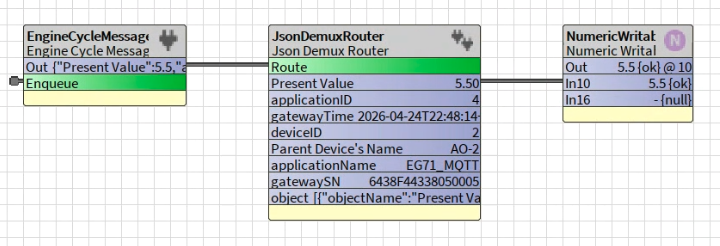
From the Queues Folder drop an EngineCycleMessageQueue onto the wire sheet
-
Link mark the ‘out’ of the MqttStringSubscribePoint to the ‘Enqueue’ of the EngineCycleMessageQueue (note it will only update when there is a change in value)
-
From the Inbound -> Routers folder drop a JsonDemuxRouter onto the wire sheet
-
In the JsonDemuxRouter properties set the Learn Mode to true
-
Link the ‘Out’ of the EngineCycleMessageQueue to ‘Route’ on the JsonDemuxRouter
Once the value is updated and a new JSON payload is delivered the point will populate the slots with the JSON field, from here we can link the values we want to other parts of strategy.
Publishing a point from the Niagara station to change a value on the EG71
In this section we will set up a publish point in the MQTT driver on the Niagara station to change the value of the AO-2 point on the EG71.
Understanding what topics to publish to:
The EG71 uses wildcard placeholders to generate topics for you to publish to in order to adjust values.
"$gatewaySN", "$deviceName", "$devEUI", "$deveui", "objectID", "objectName"
By default it is set to:
EG71/$gatewaySN/$deviceID/downlink
The deviceID is the same as the objectID found in the Data Service -> Data Forwarding -> MQTT setup.
For example
If we want to write a value to the AO-2 where its object ID is 2 and is on the device with a serial number of 6438F44338050005
I would use topic:
EG71/6438F44338050005/2/downlink
Constructing the JSON Schema in Niagara
In order to write a new value to the AO-2 we need to construct a JSON payload in the Niagara station to be sent to the broker.
{

 "objectInfo": [

   {

     "objectID": 2, //This is the device ID from the Data Forwarding Page

     "objectValue": "5.6" //This is the value we want the AO-2 to be

   }

 ]

}
Above is how we need the JSON payload to look.
-
Open the JSON tool kit palette
-
Drop a Json Schema on to the wire sheet
-
Open the Properties sheet
-
Add a Json Schema Object -> Rename to “root”
-
Add a Json Schema Array to “root” -> rename to “objectInfo”
-
Add a Json Schema Object to “objectInfo”
-
Add Json Schema Numeric Property to “Object” -> Rename to “objectID”
-
Add Json Schema Bound Property to “Object” -> Rename to “objectValue”
-
Expand the “objectValue”
-
For the Binding field point it at the numeric writable you want to control the value of the AO-2
When finished it should look like this
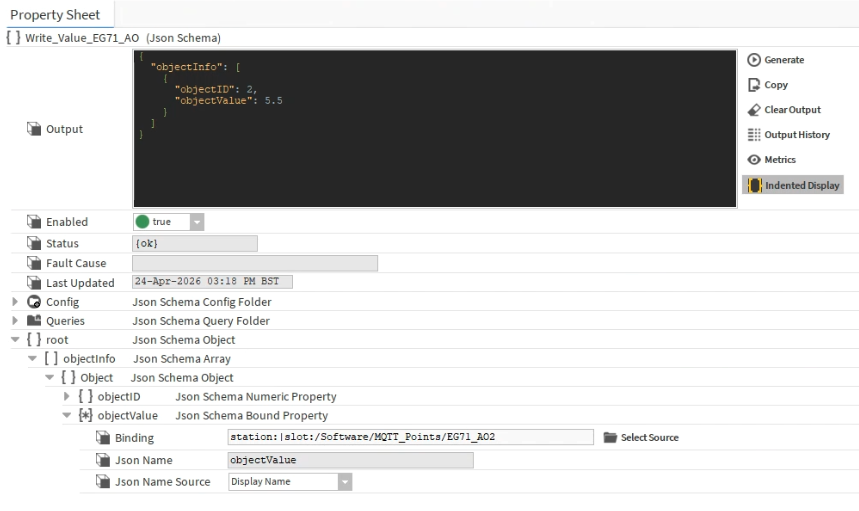
When you press generate it should have the same formatting as the example above.
Now when the NumericWritable value is changed the JSON payload will be updated and then sent onto the broker where the UG71 will automatically be subscribing to that topic and update the value of the analogue output.
Troubleshooting
|
Issue |
Possible Cause/ Fixes |
|
The EG71 cannot connect to the broker |
Check the EG71 has a connection to the internet. Check the default gateway details. Ensure the Mobile network is set up correctly. Check the signal strength, data allowance. |
|
The AbstractMqttDevice cannot connect to the broker |
Check the station has a connection to the internet. Check the default gateway details. Check the firewall is not blocking the port (1883) |
|
The MqttStringSubscribePoint is not showing any value |
If the point has just been added as a new point right click the device and click actions -> Subscribe All If the point has just been added an a new point then the value will need to be updated on the field device before registering a value Check the topic has been entered correctly. The topic is case sensitive Check the EG71 wildcard placeholders. Check the spelling, check you are constructing the topic correctly |
|
When publishing a point there is no change to the IO point |
Check the JSON payload is formatted correctly Check the topic has been entered correctly. The topic is case sensitive Ensure the deviceID is correct in the JSON payload and in the topic to be published to Check the EG71 wildcard placeholders. Check the spelling, check you are constructing the topic correctly |
References/ Resources
HiveMQ
Milsight EG71Data sheet
https://resource.milesight.com/milesight/iot/document/eg71-datasheet-en.pdf
Milesight EG71 Administrator's Guide
https://resource.milesight.com/milesight/iot/document/eg71-administrator-guide-en.pdf
Milesight EG71 Installation guide
https://resource.milesight.com/milesight/iot/document/eg71-installation-guide-en.pdf
Milesight MQTT and HTTP application guide
https://resource.milesight.com/milesight/iot/document/eg71-mqtt-http-application-guide-en.pdf