
Overview
This guide explains how to configure a JACE8000 to send SMS alarms via a Teltonika RUT955 using RS232, including setup, testing, and troubleshooting.
Required Equipment & Drivers
-JACE8000
-EM-8000-232
-DR-SMSALM (SMS Driver)
-Teltonika RUT955
-RS232 cable Male to Female
Setting Up The JACE8000 RS232 module
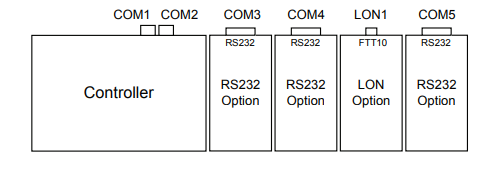
The RS232 option adds one COM port on the installed JACE-8000 controller. The controller has two integral RS485 ports. In a Niagara 4 station running on the controller, these two ports always operate as COM1 and COM2.
Installed serial option modules (RS232 or RS485) continue COM port numbering based on proximity to the controller, where the option module closest to the controller base operates as the next available serial COM port(s). For example, if attached directly to the controller, this RS232 option module operates as COM3. If another RS232 option module is chained to it, it operates as COM4.
Setting up the Teltonika RUT955
-Ensure the SIM is installed and functioning in the RUT955, and that the signal strength is adequate before continuing.
-Navigate to:
Services -> Serial Utilities -> Modem Control -> Add a new configuration

Fill out the details:
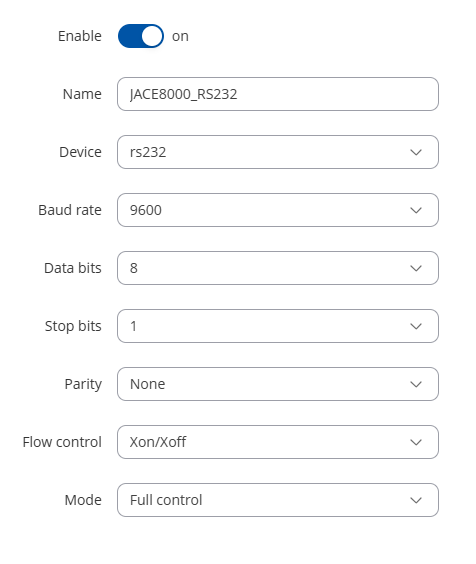
-Click Save & Apply
Note: Make a note of these settings as you will need them for the next step.
Setting Up The Niagara Station
-Open the SMS palette
-Drop the SmsService into the service container
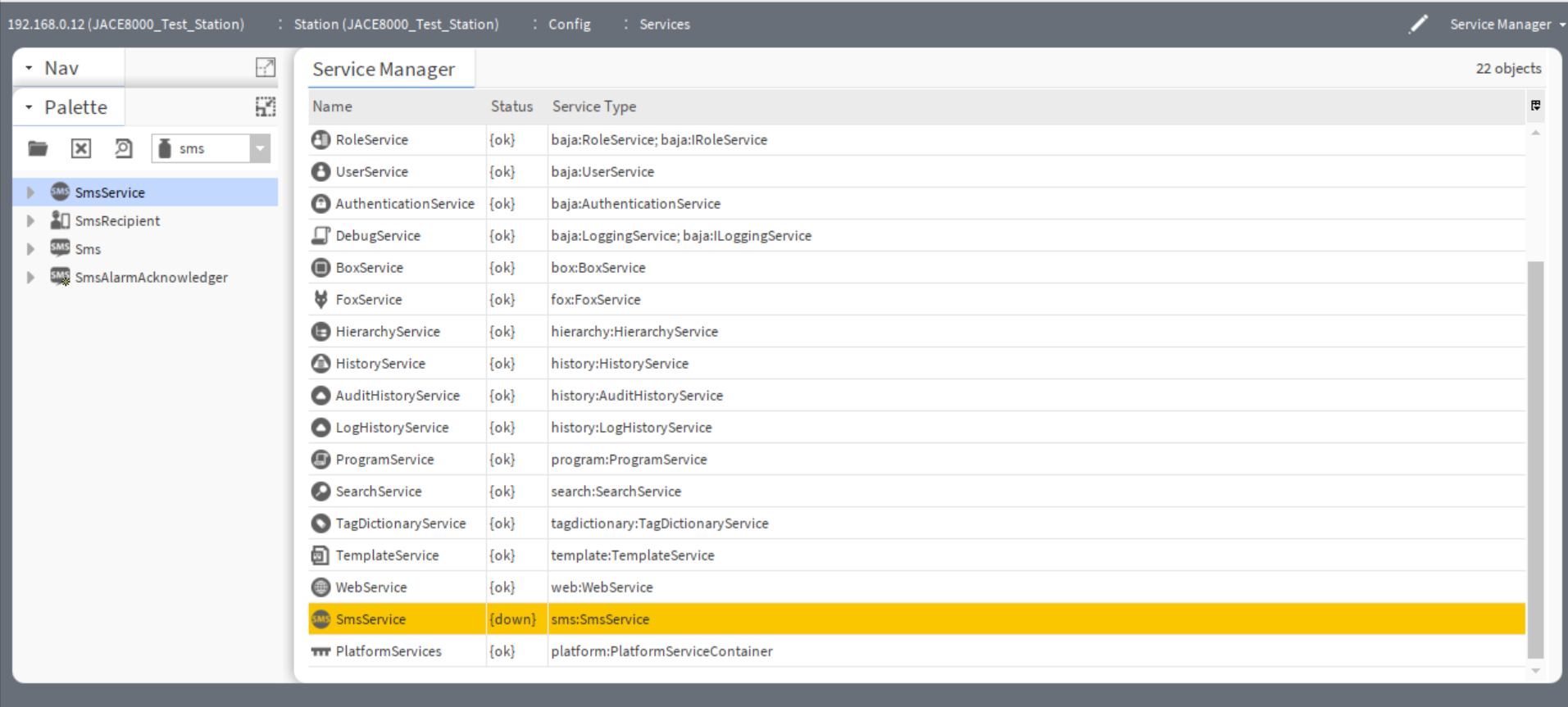
Open the SmsService AX Properties sheet
Configure the Service as shown
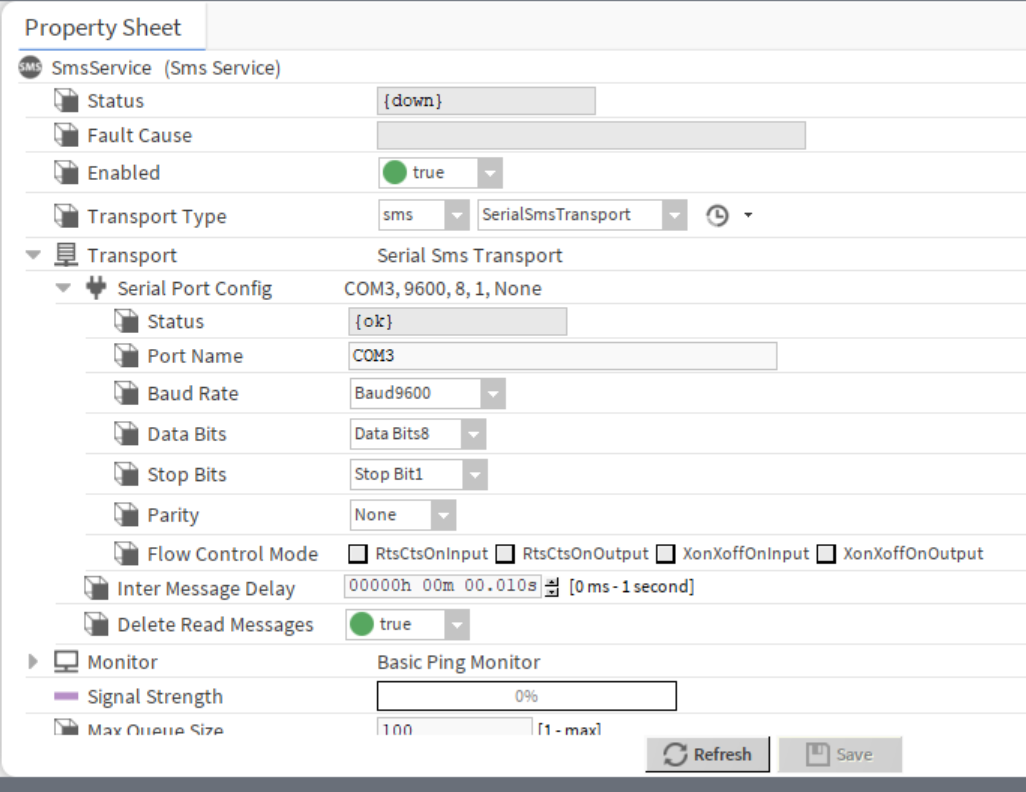
-With regards to the “Port Name” ensure you set this correctly as per the “Setting Up The JACE8000 RS232 module” section.
Note: when entering COM ensure it is all in capitals, it is case sensitive.
Testing the SMS service
-Right click the SmsService -> Actions - Ping
-If everything is set up correctly then the status will change to {ok} and the signal strength should be displaying a value.
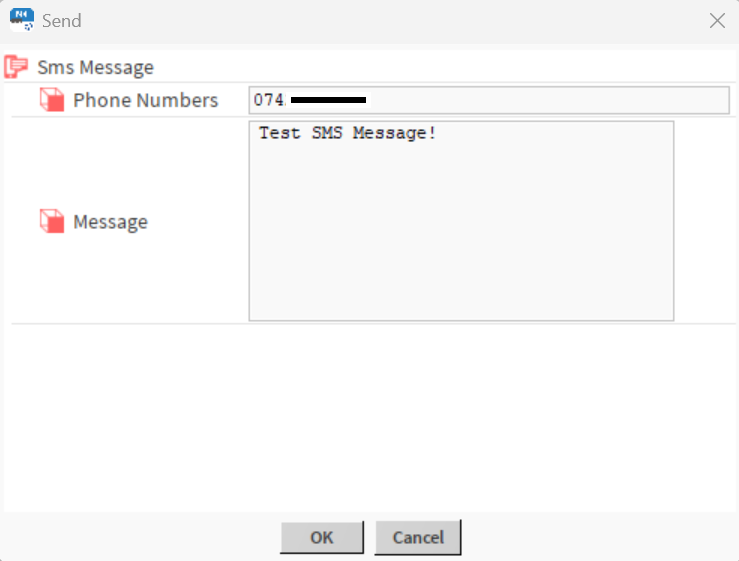
-To ensure the SMS service is working correctly you can send a test SMS. Right Click SmsService -> Actions -> Send
Setting up the Alarm Recipients
-Go to Config -> AlarmService
-Open the sms palette
-Drop the SmsRecipent onto the page
-Link the alarm classes you wish to the SmsRecipent
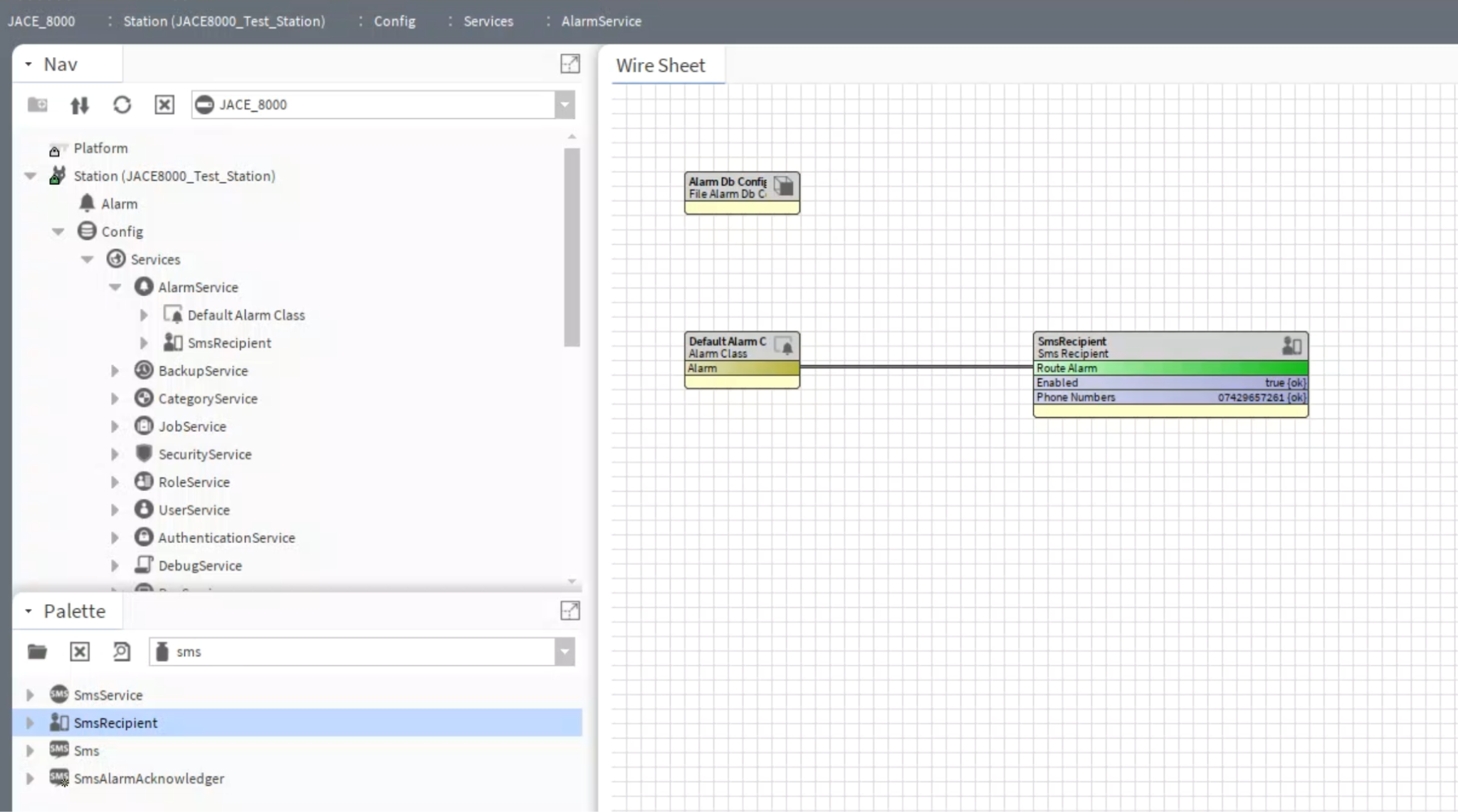
In the SmsRecipent AXProperites:
-Configure the phone numbers - These can be entered with or without the country code assuming you are not sending it to a phone in another country.
-Set the schedules for when the messages can be sent.
-Define the format of the messages to be sent.
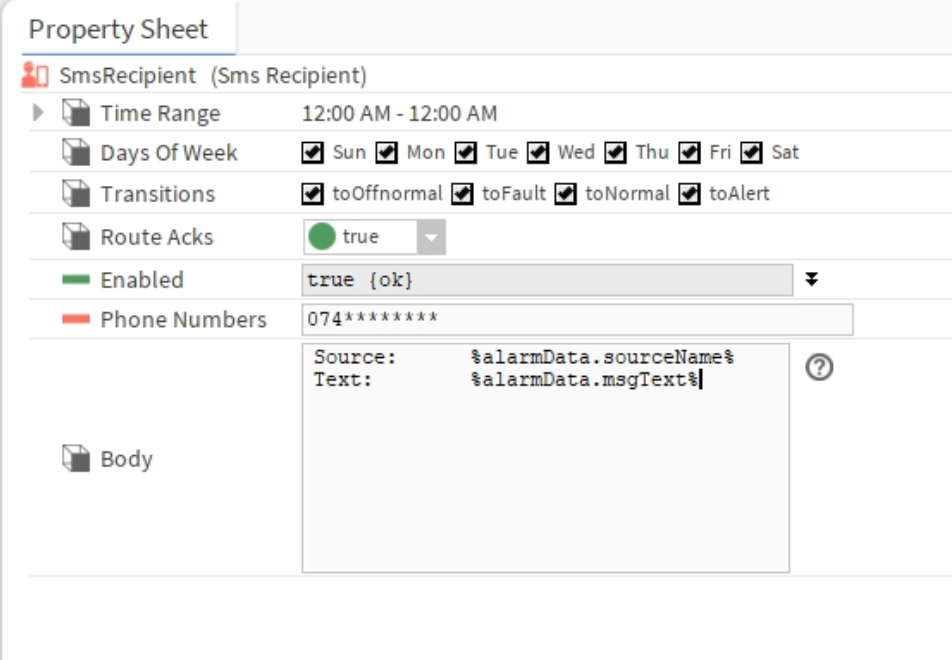
You can customise the body the SMS using the Bformat
Some examples:
High Level: %alarmData.highLimit%
Low Level: %alarmData.lowLimit%
The to Normal Text: %alarmData.toNormalText%
The to Off Normal Text: %alarmData.toOffNormalText%
Troubleshooting
|
Issue |
Solution |
|
No response from Ping |
-Check COM port -Check wiring |
|
No SMS sent |
-Check signal strength -Check SIM balance -Check “Flow Control” & “Mode” in teltonika modem control section |
|
Incorrect Messages |
-Review the SmsRecipent Body, check the BFormat configuration -Check the correct alarm class is connected to the SmsRecipent |
Supporting Documentation
RS232 Module
RUT955 Manual